How to add an availability calendar to your Squarespace vacation rental website
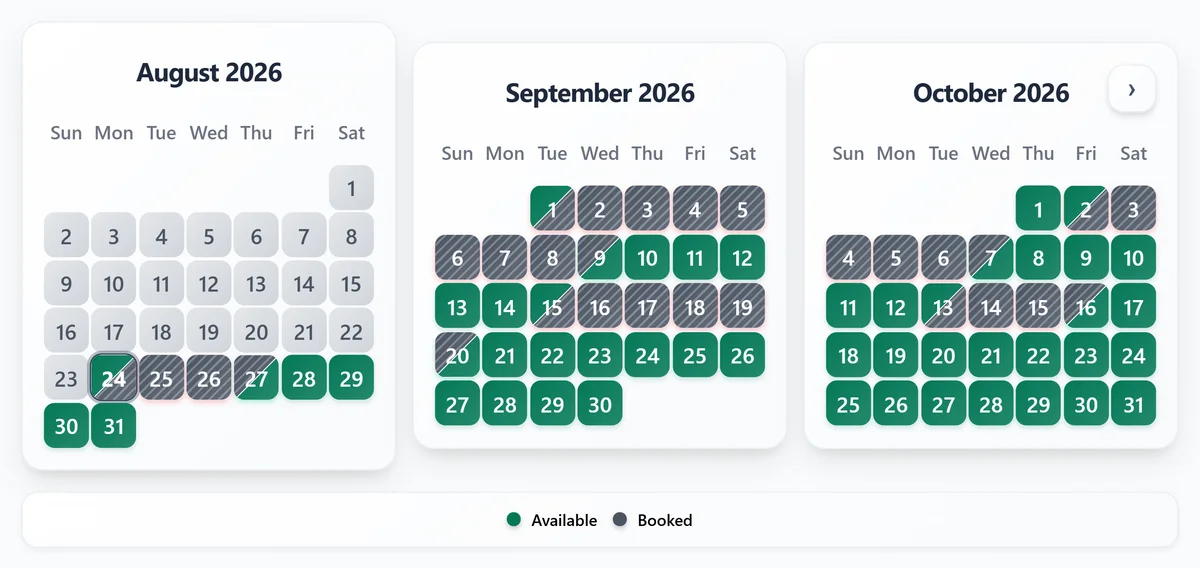
Squarespace works well for stylish vacation rental pages. On Business plans and above, Code Blocks run scripts, so the RentalBeam script embed is the cleanest setup; if your plan strips scripts, use the iframe snippet inside the same Code Block. Either way, guests see live availability without leaving your site.
Why add a calendar to your Squarespace site?
Guests want to know whether your property is available before they click through to a form or send a message. A visible availability calendar shortens that decision path, reduces repetitive date questions, and supports a cleaner direct-booking flow on your own site.
- Show booked and open dates directly on your website
- Keep using Airbnb, Vrbo, Booking.com, or any other iCal-compatible source
- Reduce back-and-forth date questions from guests
- Prepare the page for a future direct-booking widget beside the calendar
What you need
- A Squarespace page you can edit
- Your RentalBeam calendar widget
- Connected Airbnb, Vrbo, Booking.com, or other iCal feed(s)
Keep setup simple first
Start with one property page, confirm the calendar is visible and accurate, then roll the same pattern across the rest of your site.Setup steps
- 1
Create your RentalBeam calendar
- Open your RentalBeam dashboard and click Add rental.
- Paste your Airbnb, Vrbo, Booking.com, or other iCal source URLs.
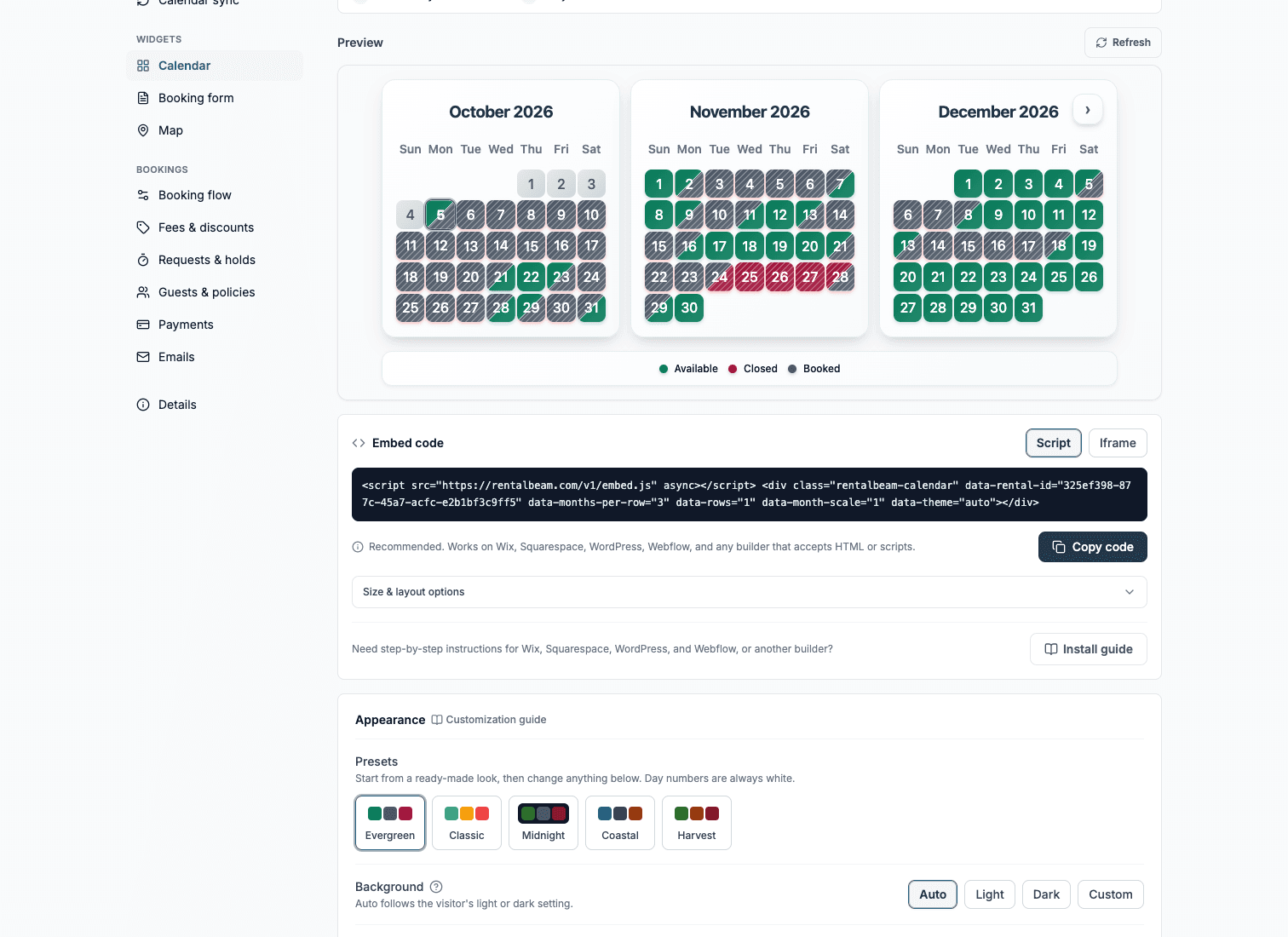
- Check the preview so blocked dates already look correct before you embed anything.
Works with any iCal source
RentalBeam supports any iCal/ICS URL, not just Airbnb. You can merge multiple availability sources into one guest-facing calendar view. - 2
Copy the right embed code for Squarespace
RentalBeam recommends the script embed for Squarespace. Use the matching code format below as your reference.
html<script src="https://cdn.rentalbeam.com/v1/embed.js" async></script> <div class="rentalbeam-calendar" data-rental-id="your-calendar-id" data-months-per-row="3" data-rows="1" data-month-scale="1"></div>Squarespace Code Blocks run scripts on Business plans and above, so the script embed keeps the calendar responsive and sized to your page.
Squarespace publishing reminders
- Paste into a Code Block, not a Text or Markdown block, so Squarespace does not escape the code.
- Code Blocks execute scripts on Business plans and above; on a lower plan that strips scripts, use the iframe snippet instead.
- Check the live published page (not just the editor preview) on desktop and mobile, since Code Block scripts may not run inside the editor.
- 3
Paste the embed into Squarespace
Builder-specific install steps
Use these steps to place the RentalBeam calendar exactly where guests check dates.
Recommended: ScriptSquarespace
Use a Code Block with the script embed; switch to the iframe snippet only if your plan strips scripts.
Squarespace Code Blocks run scripts on Business plans and above, so the script embed keeps the calendar responsive and sized to your page.
Use the Script tab for this builder.
- Open the page section you want to edit
- Insert a Code Block
- Paste the RentalBeam calendar script embed code
- Save, publish, and confirm the calendar on the live page
Before you publish
- Paste into a Code Block, not a Text or Markdown block, so Squarespace does not escape the code.
- Code Blocks execute scripts on Business plans and above; on a lower plan that strips scripts, use the iframe snippet instead.
- Check the live published page (not just the editor preview) on desktop and mobile, since Code Block scripts may not run inside the editor.
- 4
Publish and verify the guest experience
Where to place the calendar on the page
- Add the calendar near pricing, inquiry, or direct-booking content instead of burying it deep in a long page.
- Test the page inside Squarespace preview and on a live published URL.
- Leave enough vertical space so the embed does not feel cramped inside the section.
Think of the calendar as a conversion aid
Competitor guides consistently put availability close to the main inquiry or direct-booking action. That pattern reduces friction because guests can check dates and act in the same visual area.