

How to add a map widget to your WordPress vacation rental website
Use RentalBeam to show your rental's location on your WordPress website with a map that matches your site's look. This guide covers saving your location, styling the map in the dashboard, and the fastest WordPress embed path.
Why add a map to your WordPress site?
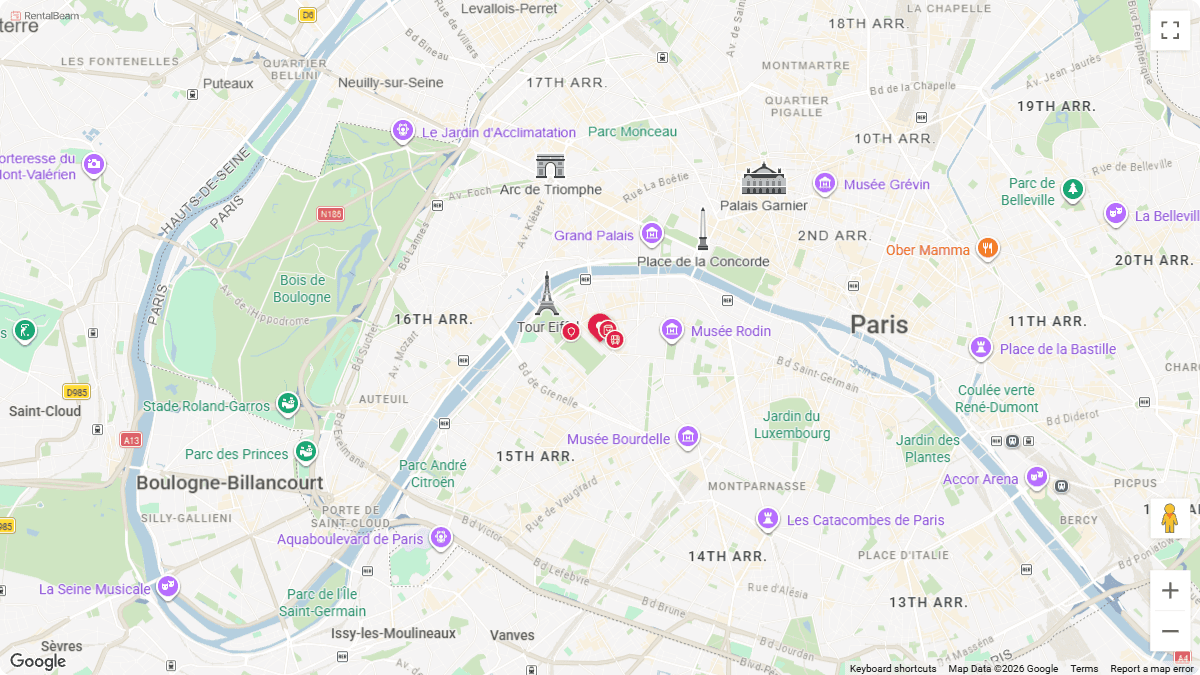
A guest deciding between listings wants to know exactly where they would be staying before they inquire. A styled map that matches your site removes that guesswork, shows nearby highlights you choose to share, and reads as a real, cared-for listing rather than a bare address. See the map widget page for a closer look at the themes and pin styles.
- Show your rental's exact location, or a privacy-friendly approximate area
- Match your site with five curated themes and a brand-colored pin
- Add nearby highlights - attractions, restaurants, transit - guests will actually use
- Works the same way on a single rental map or a collection map with several pins
What you need
- A WordPress page you can edit
- A rental with its location saved in RentalBeam (Location tab)
- A map style chosen in the dashboard Maps tab (theme, pin, and signature color)
Every plan can build one
Every RentalBeam plan, including Free, can build, style, and live-preview a map in the dashboard Maps tab. Embedding it on your own website needs Plus or Pro - see pricing for details. On Free, the embed still renders on RentalBeam's own pages, and any other site shows a neutral "Map unavailable" notice instead of an upgrade prompt.Setup steps
- 1
Save your rental's location
- Open the rental in your RentalBeam dashboard and go to its Location tab.
- Search for the address, or drag the pin directly on the map to fine-tune the exact spot.
- Choose exact-pin mode (guests see your real location, plus any nearby highlights) or approximate-area mode (a shaded circle, and your exact coordinates never reach the guest).
Nearby highlights are optional
On exact-pin maps, you can add nearby highlights - attractions, restaurants, transit stops - with icons and short notes, also edited on the Location tab.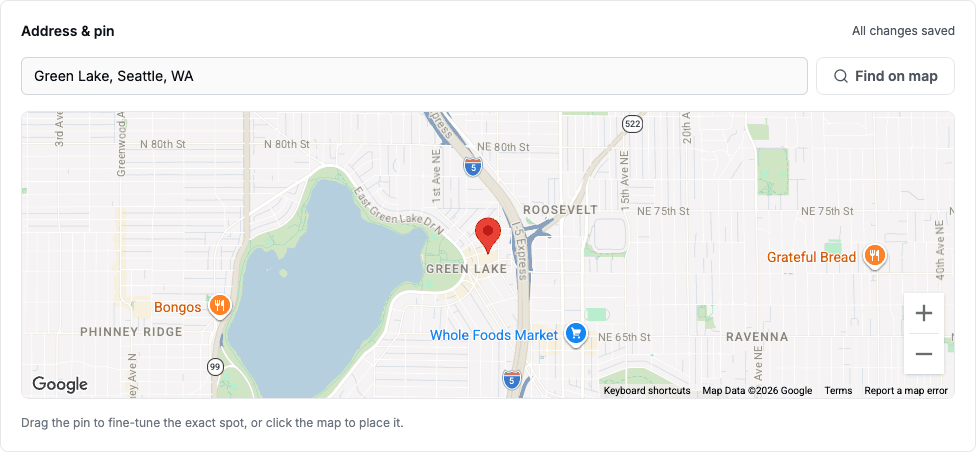
Save the location on the Location tab before it can appear on a map. - 2
Style your map and copy the embed for WordPress
Open the Maps tab in the dashboard and pick a theme (Signature, Terrain, Coastal, Midnight, or Minimal - a fixed choice that never follows a visitor's device theme), a pin style (Teardrop, Dot, or Photo), and a signature color that auto-matches your booking accent or a custom hex.
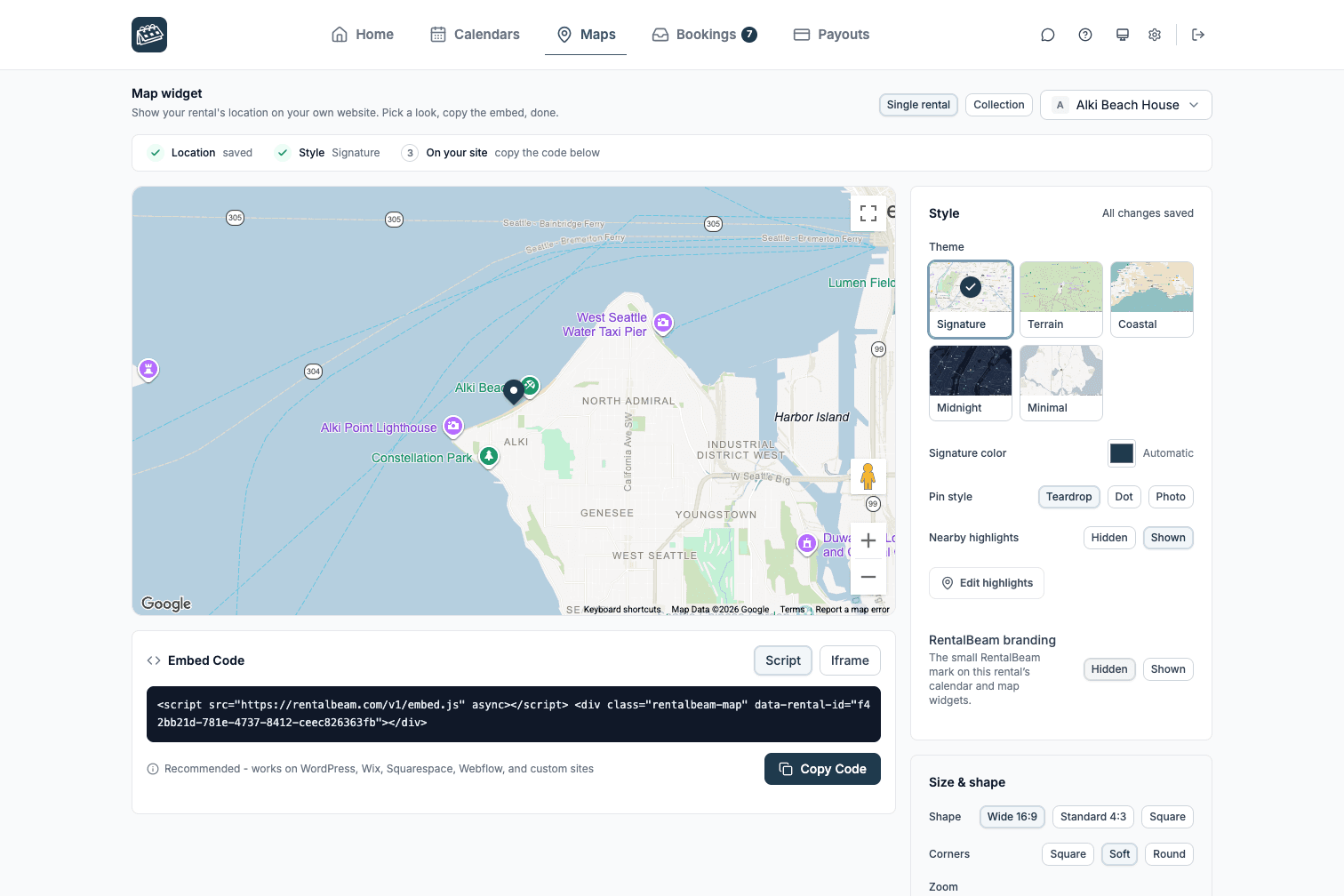
The Maps tab builder - pick a look, then copy the embed code at the bottom. RentalBeam recommends the script embed for WordPress. Use the matching code format below as your reference.
html<script src="https://cdn.rentalbeam.com/v1/embed.js" async></script> <div class="rentalbeam-map" data-rental-id="your-rental-id"></div>WordPress supports the full script embed, which keeps the map responsive and matches the theme and aspect ratio you chose in the Maps tab. The embed code also accepts optional attributes for aspect ratio, corner radius, and default zoom - see the map widget docs for the full reference.
WordPress publishing reminders
- Paste the embed into a Custom HTML block, not a Paragraph block, so WordPress does not escape the code.
- Place the map near your address, directions, or nearby-attractions copy so guests find it naturally.
- After changing the theme, pin style, or aspect ratio in the Maps tab, copy the updated embed code so the published page matches your latest choice.
- 3
Paste the map into WordPress
Builder-specific install steps
Use these steps to place the RentalBeam map exactly where guests look for your location.
Recommended: ScriptWordPress
Best fit when you can add a Custom HTML block or plugin.
WordPress supports the full script embed, which keeps the map responsive and matches the theme and aspect ratio you chose in the Maps tab.
Use the Script tab for this builder.
- Edit the page where guests should see your rental's location
- Add a Custom HTML block
- Paste the RentalBeam map embed code
- Preview the page and publish the update
Before you publish
- Paste the embed into a Custom HTML block, not a Paragraph block, so WordPress does not escape the code.
- Place the map near your address, directions, or nearby-attractions copy so guests find it naturally.
- After changing the theme, pin style, or aspect ratio in the Maps tab, copy the updated embed code so the published page matches your latest choice.
- 4
Publish and verify the map
Where to place the map on the page
- Place the map near your address, directions, or nearby-attractions copy.
- Give the map its own full-width section so the chosen aspect ratio does not feel cramped next to other content.
- Preview the page on mobile before publishing so the map sizing feels natural.
Treat the map as supporting proof, not the hero
High-converting listing pages put the map near the address, directions, or a short neighborhood description - close enough that guests notice it without it competing with your main booking call to action.Already have the calendar widget on WordPress?
If you already added the RentalBeam availability calendar to your WordPress site, the map embeds the same way - the same script tag, the same paste-and-publish workflow, just a different container. Read the WordPress calendar guide if you have not set that up yet.