Where to find your Airbnb, Vrbo, and Booking.com iCal links
Every booking platform can hand you a private calendar link, called an iCal or ICS link, that lists the dates you already have booked. Paste that link into a website calendar tool and your own site shows the same availability as the platform, refreshed on its own. The hard part is finding the link, because each platform hides it somewhere different. This guide shows where it lives on Airbnb, Vrbo, and Booking.com, what a real link looks like, and the mistakes that make a pasted link fail.
Airbnb
- 1
Open your listing
Go to your Airbnb listing and open Calendar, then Availability settings.
- 2
Scroll to Sync calendars
Click Export calendar. Airbnb shows a long https address.
- 3
Copy the address
Copy the whole thing. It starts with
airbnb.com/calendar/icaland carries a private token, which is why it works without a login.
Vrbo
- 1
Open the listing dashboard
Sign in to Vrbo and open the listing you want to sync.
- 2
Go to Calendar, then Import/Export
The screen has two halves. Import is for pulling other calendars into Vrbo. You want Export.
- 3
Click Export and copy the link
Vrbo shows the iCal link. Copy it in full.
Booking.com
- 1
Log in to the extranet
The extranet is the Booking.com site for property owners, not the guest site.
- 2
Go to Calendar, then Sync
Booking.com calls the feature calendar sync. Open it for the room or unit you are connecting.
- 3
Find Export and copy the address
The link comes from
ical.booking.com. Copy the whole address.
Any other platform
Most booking platforms, and every calendar app, can export an iCal link. Look for words like Export, iCal, ICS, or Calendar sync in the calendar or settings area. The address usually ends in .ics. Google Calendar has a secret address in each calendar's settings that works the same way.
Paste it into your website calendar
- 1
Add the link as a source
In RentalBeam, open your rental and add the link as an iCal source. Add one source per platform.
- 2
Check the first import
Booked nights from the platform appear on the calendar within the first refresh. If nothing appears, re-copy the link: a truncated address is the most common cause.
- 3
Embed the calendar
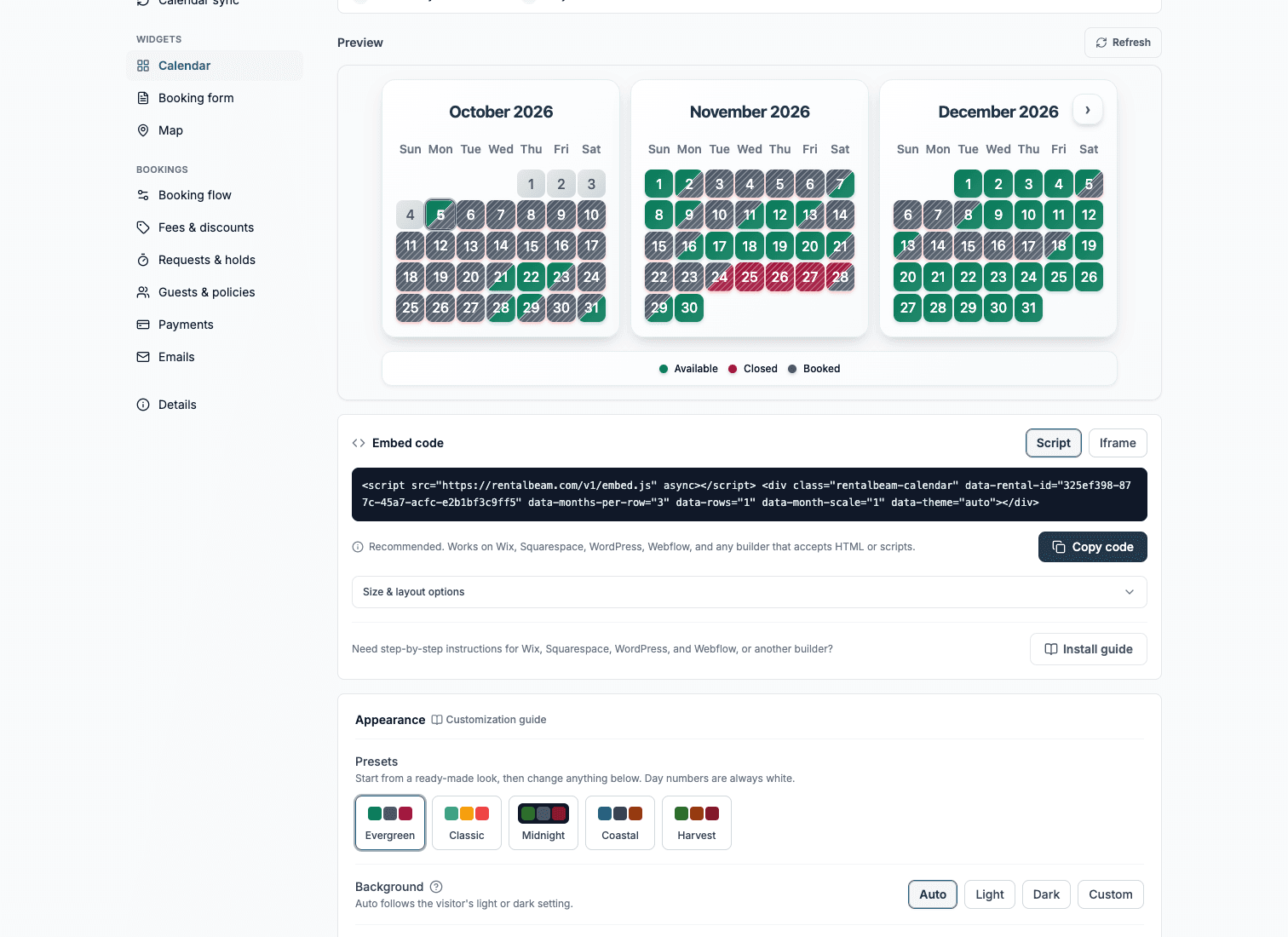
Copy the embed code and paste it into your website. From then on the calendar refreshes itself.
Three mistakes that make a pasted link fail
Pasting the listing page instead of the export link. The listing URL has no calendar data. RentalBeam tells you when it sees one.
Copying half the address. The private token at the end is the part that makes the link work.
Expecting it to be instant. RentalBeam re-reads links at most every 15 minutes, and each platform adds its own delay before a fresh booking shows up in its export. Airbnb's feed can lag around 3 hours and Booking.com's up to 24. That lag is a platform property, not something a website tool can remove.
Sending your website bookings back the other way
An iCal link is one direction: platform to website. If you also take bookings on your own site, RentalBeam gives you an export link of its own. Paste that into Airbnb, Vrbo, and Booking.com and a night booked on your website blocks itself everywhere else. That two-way loop is what keeps a direct booking from turning into a double booking.
Summary
Airbnb keeps the link under Calendar, Availability settings, Sync calendars. Vrbo keeps it under Calendar, Import/Export. Booking.com keeps it under Calendar, Sync in the extranet. Copy the whole address, add it to RentalBeam as a source, and your website calendar stays in step with every platform on its own.