How to sync your Booking.com calendar with your website
If you list on Booking.com, you already publish availability there. This guide shows how to bring that same availability onto your own website with a free embeddable calendar, so a visitor never has to leave your site to see what is open. It also covers the two-way workflow for hosts who want RentalBeam to become the single source of truth across Booking.com, Airbnb, and Vrbo.
How it works
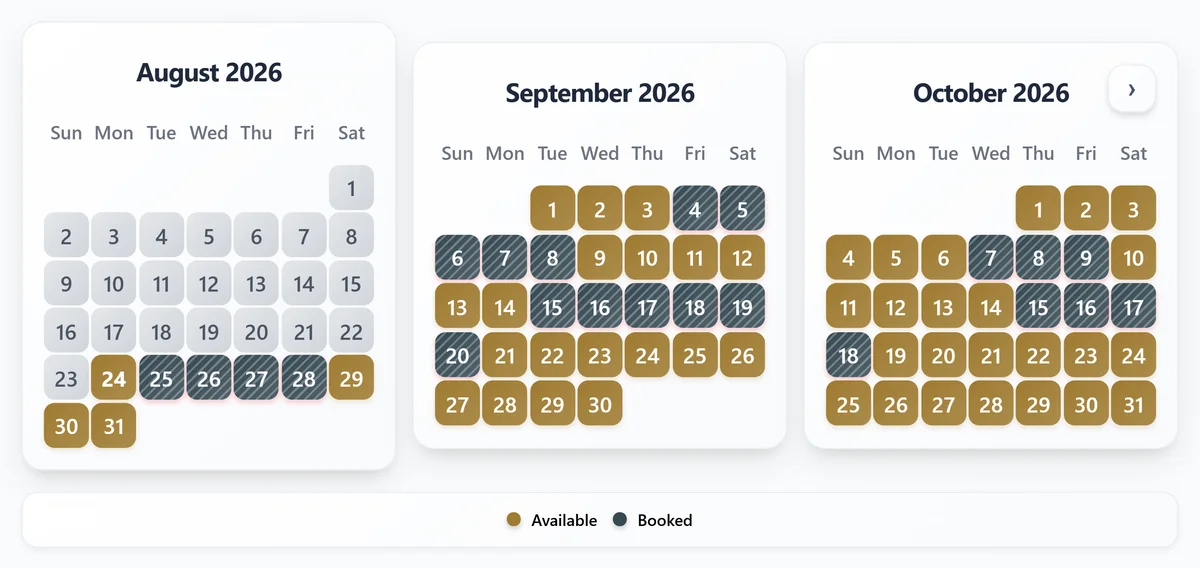
Booking.com publishes a private iCal feed for each property: a live URL that encodes your reservation and availability data in a format any calendar tool can read. RentalBeam reads that feed and renders the same availability as a widget you place directly on your website.
Nights booked on Booking.com appear blocked on your website. If you also list on Airbnb, Vrbo, or anywhere else with an iCal feed, add those URLs too and RentalBeam merges them into one calendar: a date is unavailable the moment any connected platform has it booked.
Two clocks, not one
RentalBeam re-checks your imported feed at most every 15 minutes. Separately, a change has to reach Booking.com's own iCal feed before RentalBeam can read it, and that part is set by Booking.com, not by us.
What you need
- An active Booking.com listing
- Access to your website (any builder that supports custom HTML)
- Your Booking.com account login
Setup steps
- 1
Find your Booking.com iCal export link
Log in to your Booking.com property account and look in your calendar settings for an export or iCal link. Copy the full URL shown there.
Keep this URL private
The iCal URL is tied specifically to your listing. Anyone who has it can view your booking dates. Do not share it publicly or post it in unsecured locations. - 2
Create your calendar widget in RentalBeam
- Open the RentalBeam dashboard
- Click Add rental
- Paste your Booking.com iCal URL
- Give the rental a name (e.g. "Harbor View Apartment")
- Click Add rental to save it
Add iCal URLs from Airbnb, Vrbo, or any other platform to merge every booking source into this one widget. - 3
Embed the widget on your website
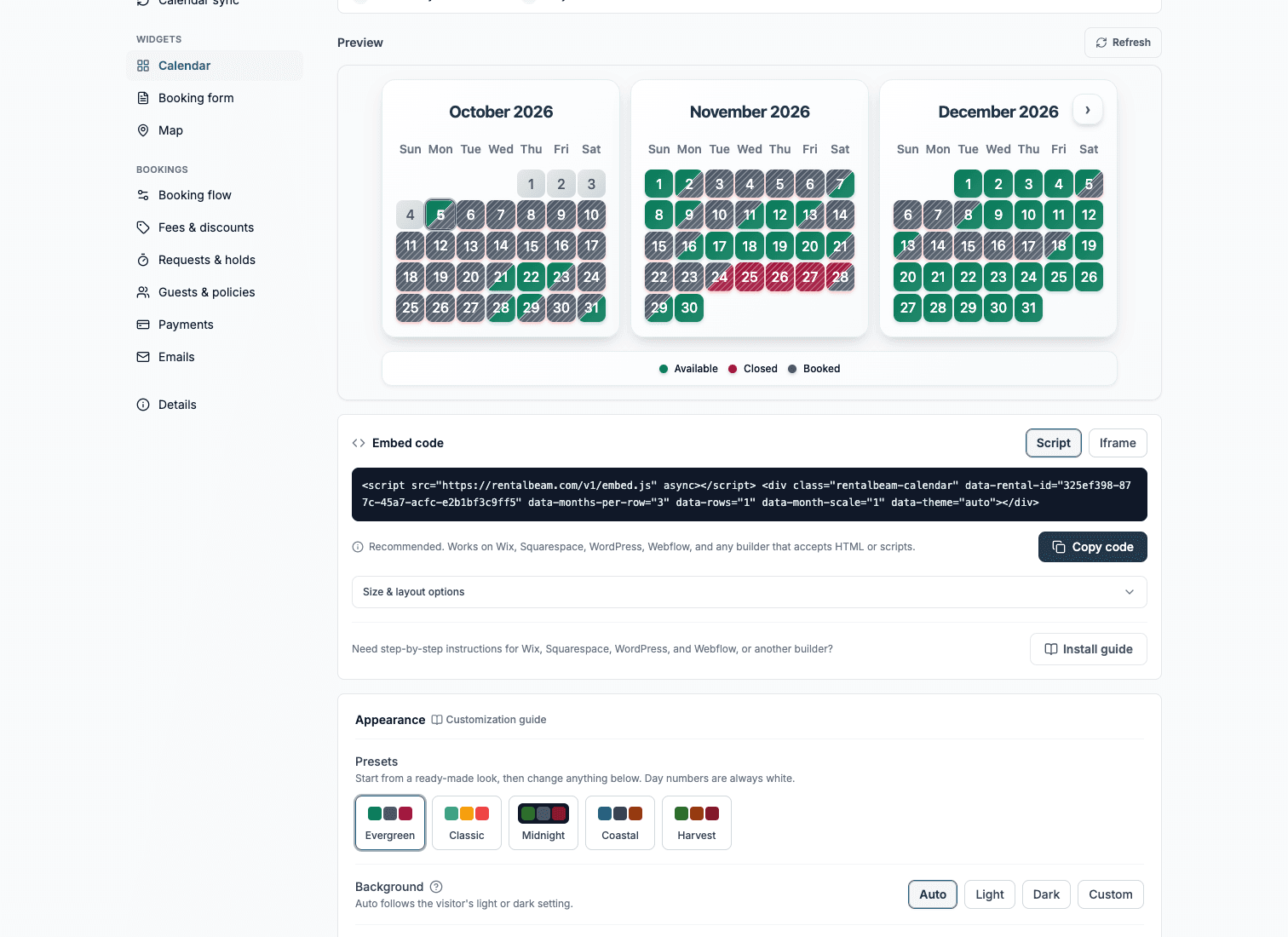
In the rental's Calendar widget section, adjust colors and styling (Plus and Pro), then copy the embed code from that section and paste it into your site:
html<iframe src="https://rentalbeam.com/embed/your-widget-id" width="100%" height="446" frameborder="0" style="border: none; border-radius: 8px;"> </iframe>Website builder install steps
Choose your site builder for the fastest copy-and-paste path.
Recommended: ScriptWordPress
Best fit when you can add a Custom HTML block or plugin.
WordPress supports the full script embed, which keeps the calendar sized to your page.
Use the Script tab for this builder.
- Edit the page where guests check availability
- Add a Custom HTML block
- Paste the RentalBeam calendar embed code
- Preview the page and publish the update
Before you publish
- Paste the embed into a Custom HTML block, not a Paragraph block, so WordPress does not escape the code.
- Keep the calendar close to your main inquiry or booking button so guests can check dates and act without scrolling back up.
- After changing the months per row, rows, or month size in RentalBeam, copy the updated embed and re-open the live preview so the published layout matches the current settings.
- 4
Verify the integration
- Open your website and confirm the calendar renders
- Check that booked Booking.com dates appear as unavailable
- Test on a mobile device to confirm the responsive layout
Sync behavior
Once connected, RentalBeam refreshes your imported feed automatically: at most every 15 minutes. A very recent reservation can still take longer to show, because it has to reach Booking.com's own feed first. New bookings block the date, cancellations open it back up, and manual blocks you set on Booking.com for maintenance or personal use appear as unavailable too.
Manual refresh
You can trigger an immediate refresh with the Refresh button in the rental's Calendar sync section at any time rather than waiting for the next automatic update cycle.
Go beyond one-way sync
A website embed solves the visibility problem on its own, but RentalBeam Plus and Pro also support a two-way iCal workflow: import Booking.com, Airbnb, Vrbo, and other feeds into one calendar, manually add owner blocks or maintenance windows, and export one combined iCal URL back out again.
- Combined export URL: paste back into Booking.com, Google Calendar, or other OTA calendars where iCal import is supported.
- Calendar sync: open a rental's Calendar sync to see Healthy, Not updating, or Can't read status and the last sync time for every source. The Rentals list flags any rental whose sync needs you.
- Google Calendar quick-add: open a one-click webcal subscription directly from your dashboard.
If all you need is to merge Booking.com with other platforms without adding a website widget, icalendarsync.com covers that narrower use case.
Ready for direct bookings?
Once your Booking.com availability is live on your website, Pro adds a booking form so guests can request or pay for a stay directly, with zero RentalBeam commission and zero booking fee. See how to accept direct bookings from your vacation rental website for the full walkthrough.