How to Set Preparation Time Between Vacation Rental Bookings
Nothing kills a guest review faster than arriving at a property that was not fully cleaned because the previous guest checked out the same morning. Preparation time (also called a turnover buffer) solves this by automatically blocking a fixed number of days before and after every booking so you always have time to prepare the property. This guide explains what preparation time is, how to set it in RentalBeam, and how to sync those buffer blocks to Airbnb, Vrbo, and Google Calendar via iCal export.
What is preparation time?
Preparation time is a per-booking rule. For each confirmed reservation and each blocked date from an external iCal source (Airbnb, Vrbo, Booking.com), RentalBeam adds a blocked window:
- Before check-in: the N days immediately before the arrival date are blocked
- After checkout: the N days immediately after the departure date are blocked
For example, a 1-day preparation time means the day before each arrival and the day after each checkout are automatically unavailable. No new guest can book those adjacent days.
This is different from advance notice (minimum lead time), which restricts how soon from today a guest can check in. Preparation time operates around existing bookings; advance notice operates from today's date. Both can be configured at the same time.
Why set preparation time?
- Professional cleaning crews typically need a full day between checkouts and check-ins
- Linen services, maintenance contractors, and inspections need lead time
- Back-to-back bookings leave no room for inventory restocking or repairs
- A turnover buffer reduces guest complaints about uncleaned or unready properties
- When synced via iCal export, all platforms block the same gap, no manual updates needed
How to configure preparation time in RentalBeam
- 1
Open your rental's Calendar page
Log in to your RentalBeam dashboard and open the rental you want to configure. Its Calendar page opens. With no dates selected, the panel shows Your usual settings. Prep time is under When guests can book.
- 2
Set the preparation time days
Enter the number of buffer days. Setting 1 means one day is blocked before each arrival and one day after each departure. Setting 2 doubles that window. Most hosts with professional cleaning use 1 day.
- 3
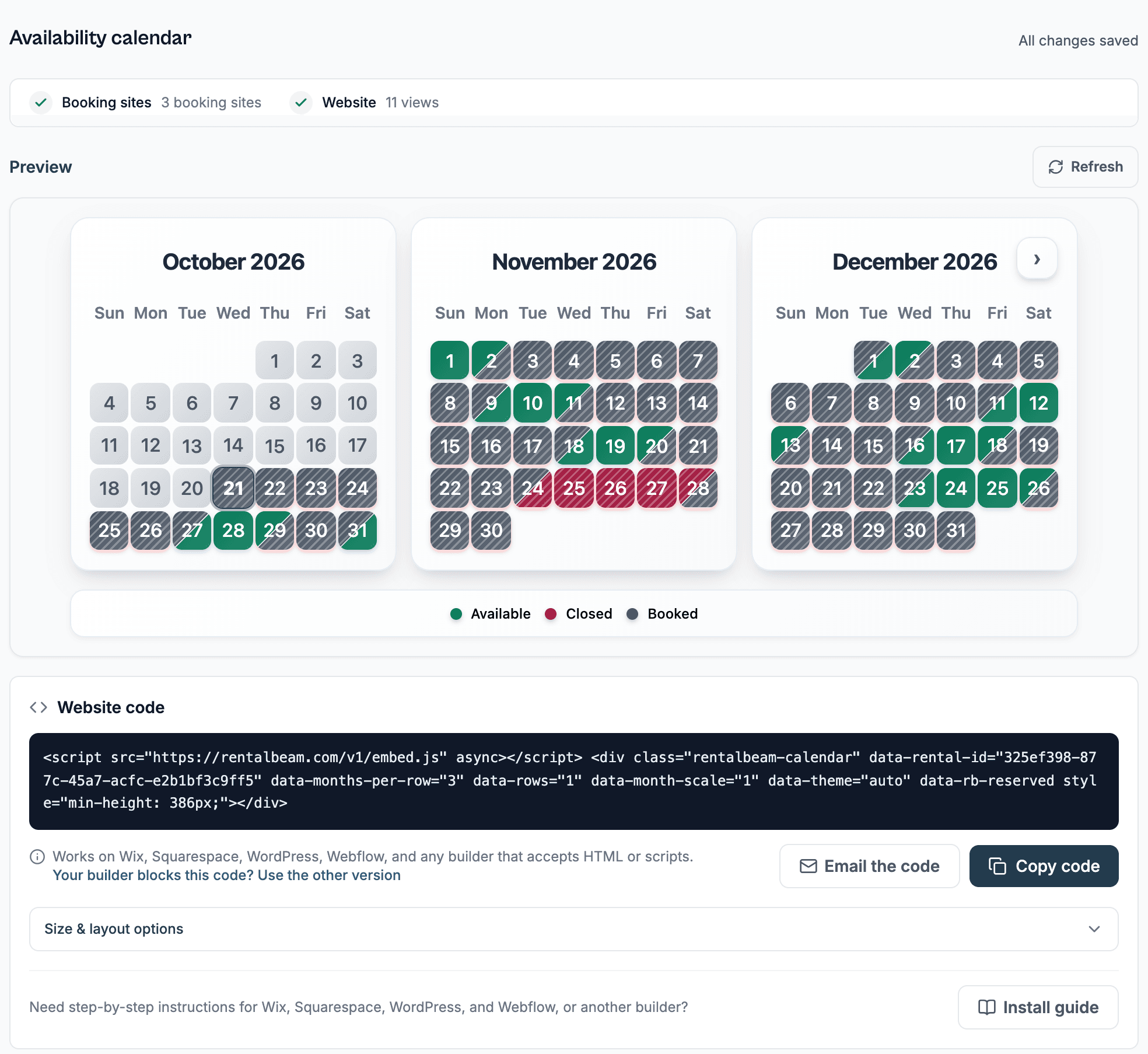
Prep days show as closed on the calendar
The buffer days appear as "closed" on your embedded availability calendar, so website visitors see those days as unavailable and never wonder why nearby dates can't be picked.
- 4
Save and test
Save your changes. Your RentalBeam booking form will immediately prevent new booking requests from landing on buffer days.
Syncing preparation time to Airbnb, Vrbo, and Google Calendar
Configuring preparation time inside RentalBeam only applies to your own booking form widget. To enforce the same buffer on Airbnb, Vrbo, and in Google Calendar, you need to include the preparation time blocks in your iCal export URL.
When enabled, RentalBeam generates blocked date events (VEVENTs) before and after each booking in your export feed. Any platform that imports that feed treats those days as unavailable and will not offer them to new guests.
- 1
Open your rental's Export settings
In your RentalBeam dashboard, open your rental and go to Booking sites. It also shows all your iCal import sources and export feeds.
- 2
Edit your export URL
Click the edit icon on the export URL you use with Airbnb, Vrbo, or Google Calendar. If you use the Combined Feed, preparation time buffers are already enabled by default.
- 3
Enable preparation time buffers
Check the Prep time buffers option in the "What to include" section. This adds buffer events around every booking and external source event. Save the URL.
- 4
Re-import or wait for sync
Airbnb and Vrbo typically refresh imported iCal feeds every few hours. You can also trigger a manual refresh from their calendar settings pages. Once refreshed, the buffer days will appear as unavailable on those platforms.
Back-to-back bookings are handled automatically
RentalBeam trims the buffer where two bookings touch. If two bookings are consecutive (one guest's checkout day is the next guest's check-in day), the buffer events are automatically trimmed so that shared day is not double-blocked. This keeps your calendar accurate and avoids creating phantom unavailable gaps.
Preparation time in your iCal export: how it works
For each booking or external source event in your calendar, RentalBeam checks whether the intended buffer window overlaps with any adjacent booking. If it does, the buffer is clipped to only cover the truly empty days. This means:
- Booking A ends on Friday. Buffer covers Saturday (1 day).
- Booking B starts on Saturday. Buffer covers Friday (1 day).
- RentalBeam detects the overlap (Friday is already occupied by Booking A), so Booking B's before-buffer is clipped away. No phantom block on Friday.
- Saturday is already occupied by Booking B, so Booking A's after-buffer is clipped away. No phantom block on Saturday either.
This smart clipping prevents duplicate or misleading blocks in Google Calendar and on Airbnb.
Combined Feed handles this automatically
The Combined Feed export URL in RentalBeam always has preparation time buffers (and all other availability settings) enabled. If you use the Combined Feed URL in Airbnb, Vrbo, and Google Calendar, your buffer blocks are always included without any manual configuration.
How much preparation time should you set?
- 1 day: works well for properties with in-house cleaning where you can turn over the same day
- 2 days: common when a cleaner and a separate inspector or restocking visit are both needed
- 3+ days: appropriate for larger properties, remote locations, or properties requiring deep-clean between stays
- Consider using 1-day preparation time combined with 1-day advance notice for maximum scheduling flexibility
- If you already block prep days manually, switching to automatic preparation time removes the need to do that
Related availability rules
Preparation time is one of several availability controls in RentalBeam. You may also want to configure:
- Advance notice (minimum booking lead time): prevents bookings too close to today
- Booking window: limits how far ahead guests can book
- Allowed check-in/check-out days: restricts arrival and departure to specific weekdays (for example, Saturday-to-Saturday only)
Summary
Preparation time is one of the highest-value availability settings for any busy vacation rental. Setting it takes under a minute in RentalBeam, and enabling it in your iCal export ensures every connected platform automatically respects the same buffer. No more manually blocking cleaning days after every checkout.