How to accept direct bookings on your Weebly vacation rental website
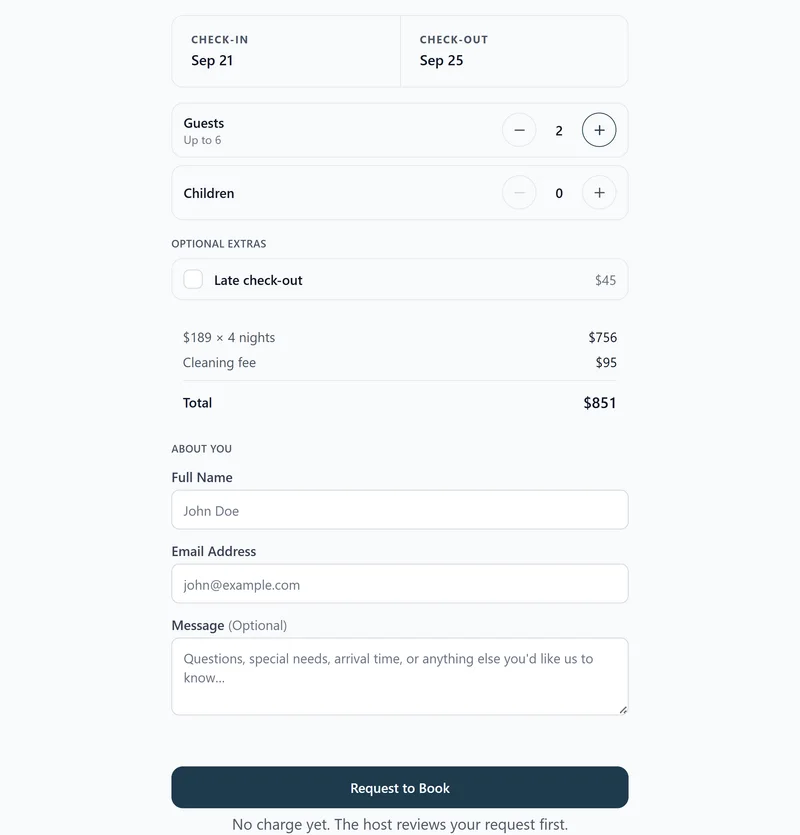
Weebly can publish a real booking form without a full PMS or a separate form builder. Weebly's Embed Code element accepts JavaScript, so the recommended setup pastes the RentalBeam booking widget script into an Embed Code element, placed next to your availability calendar. You decide whether guests submit an inquiry, get billed after host approval by bank transfer, cash, or a secure card payment link, or pay inline with Stripe Connect - and we never take a cut of what you charge.
Why add a direct-booking form to your Weebly site?
Guests who reach your own website are your highest-intent traffic. Letting them request or book a stay without leaving the page, and without paying an OTA service fee, is the most underused conversion lever in vacation rentals. A direct-booking form on Weebly turns the page from a brochure into a booking surface.
- Take booking requests directly from your own website
- Keep Airbnb, VRBO, and Booking.com synced so the form never sells double-booked dates
- Offer coupon codes, seasonal pricing, custom fields, and booking rules
- Choose between inquiry-only, bill later by bank transfer, cash, or a card link, or inline Stripe Connect card payment
- Zero RentalBeam commission on direct bookings - hosts keep 100% of their booking revenue
What you need
- A Weebly page you can edit
- A RentalBeam Pro plan with a booking-ready calendar
- At least one connected OTA or iCal availability source
Pro plan required
The booking widget is part of RentalBeam Pro. We never take a cut of what you charge. When a guest pays by card, only the standard Stripe card-processing fee applies, paid to Stripe rather than RentalBeam.Setup steps
- 1
Create a booking-ready RentalBeam calendar
- Open your RentalBeam dashboard and create or open a calendar.
- Connect at least one iCal source (Airbnb, VRBO, Booking.com, Google Calendar) so the booking widget never offers double-booked dates.
- Set your nightly pricing, optional seasonal rules, minimum stay, advance notice, and prep time.
- Decide whether bookings should be inquiry-only, host-reviewed and billed later by bank transfer, cash, or a card link, or paid inline with Stripe Connect.
Choose payment flow at any time
You can start with inquiry-only or pay-later requests today and switch to inline card payments later without rebuilding the page. The widget URL stays the same. - 2
Copy the right booking widget embed for Weebly
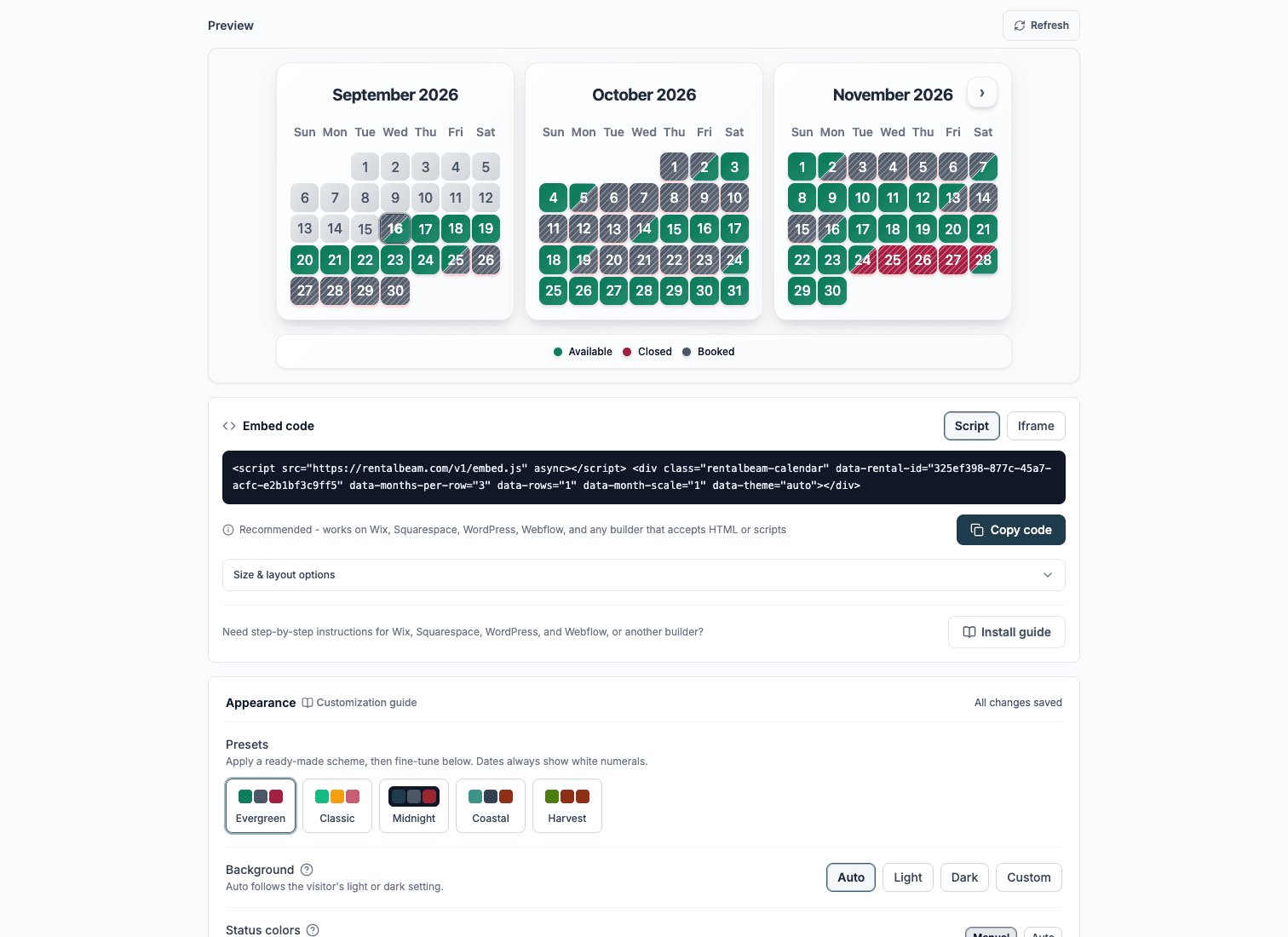
RentalBeam recommends the script embed for Weebly. Use the matching code format below as your reference.
html<script src="https://cdn.rentalbeam.com/v1/embed.js" async></script> <div class="rentalbeam-booking-form" data-rental-id="your-calendar-id"></div>Weebly's Embed Code element accepts custom JavaScript, so the booking widget script works and keeps the best loading and mobile behavior. Weebly does not preview embedded scripts in the editor, so you confirm the form on the published page.
Weebly publishing reminders
- Keep the booking form in its own row or section so Weebly columns do not squeeze the fields.
- Always test on the published URL, not the editor preview, since Weebly does not render embedded scripts while you are editing.
- If your plan strips scripts, use the iframe snippet instead. Advanced: load the script through Settings, then SEO, then Footer Code, and keep only the booking div in the Embed Code element.
- 3
Paste the booking widget into Weebly
Builder-specific install steps
Use these steps to place the RentalBeam booking widget exactly where guests are ready to book.
Recommended: ScriptWeebly
Use the Embed Code element with the script snippet - it accepts JavaScript. Embedded scripts show only on the published site, not in the Weebly editor.
Weebly's Embed Code element accepts custom JavaScript, so the booking widget script works and keeps the best loading and mobile behavior. Weebly does not preview embedded scripts in the editor, so you confirm the form on the published page.
Use the Script tab for this builder.
- Edit the page where guests should submit booking requests
- Drag an Embed Code element onto the page from the Build panel
- Choose Edit Custom HTML and paste the RentalBeam booking widget script embed - both the script tag and the booking div
- Publish, then submit a test inquiry on the live page using desktop and mobile
Before you publish
- Keep the booking form in its own row or section so Weebly columns do not squeeze the fields.
- Always test on the published URL, not the editor preview, since Weebly does not render embedded scripts while you are editing.
- If your plan strips scripts, use the iframe snippet instead. Advanced: load the script through Settings, then SEO, then Footer Code, and keep only the booking div in the Embed Code element.
- 4
Publish and submit one live test inquiry
Where to place the booking widget on the page
- Keep the booking form in its own Weebly row or section so columns do not squeeze the fields.
- Always run your test inquiry on the published URL, not the editor preview, since Weebly often hides embedded code while you are editing.
- Booking settings you change in RentalBeam update the live widget automatically - once the code is pasted, Weebly never needs another edit.
Treat the booking form as the page's primary CTA
High-converting direct-booking pages put the booking form directly next to or under the availability calendar so guests can check dates and request a stay in a single visual area.No commission on your direct bookings
RentalBeam Pro never takes a cut of what you charge - your booking revenue is 100% yours. When a guest pays by card through RentalBeam, the only deduction is the standard Stripe card-processing fee, which is paid to Stripe, not RentalBeam.
- No commission - RentalBeam never takes a cut of your booking revenue.
- No RentalBeam booking or application fee on guest card payments.
- Card payments carry only the standard Stripe card-processing fee; inquiry-only and pay-later bookings have no per-transaction cost.