Run your direct bookings from your phone: the RentalBeam app for hosts
A guest sends a request from your website while you are on a ferry, at work or asleep. The RentalBeam app puts those requests, your guest messages and your calendar on your iPhone or Android phone, so you can answer from wherever you are.
Who the app is for
The app is for hosts who take bookings on their own website and want to run them from a phone. Say you rent a cottage on Cape Cod and a cabin near Lake Tahoe. Guests find your site, pick dates on the calendar and send a request through the booking form. You are rarely at a desk: you are between a cleaning and a check-in, on a ferry, or at your other job.
It also fits a host who lists on Airbnb, Vrbo and Booking.com as well. The calendar in the app shows your own bookings beside every site you list on, so you see the whole picture in one place.
What reaches your phone
Three things can reach your phone: a new booking request, a message from a guest, and a payment. These are the same alerts RentalBeam already sends by email. For each kind you choose email, phone or both.
Tapping an alert opens that booking or that conversation. The alert says who and which stay, and never what the guest wrote. The app asks to send alerts after you sign in, never before, so you decide when.
What you can do from it
- Open a request and see the dates, the guests and the price, then accept or decline it.
- Reply to a guest. Your reply reaches them by email, their answer comes back to the same conversation, and saved replies sit above the keyboard.
- Send a price for an inquiry, share a payment link, and record a payment.
- Change a booking's dates and guests, or cancel it.
- Close and open nights on the calendar, and change a night's price and minimum stay.
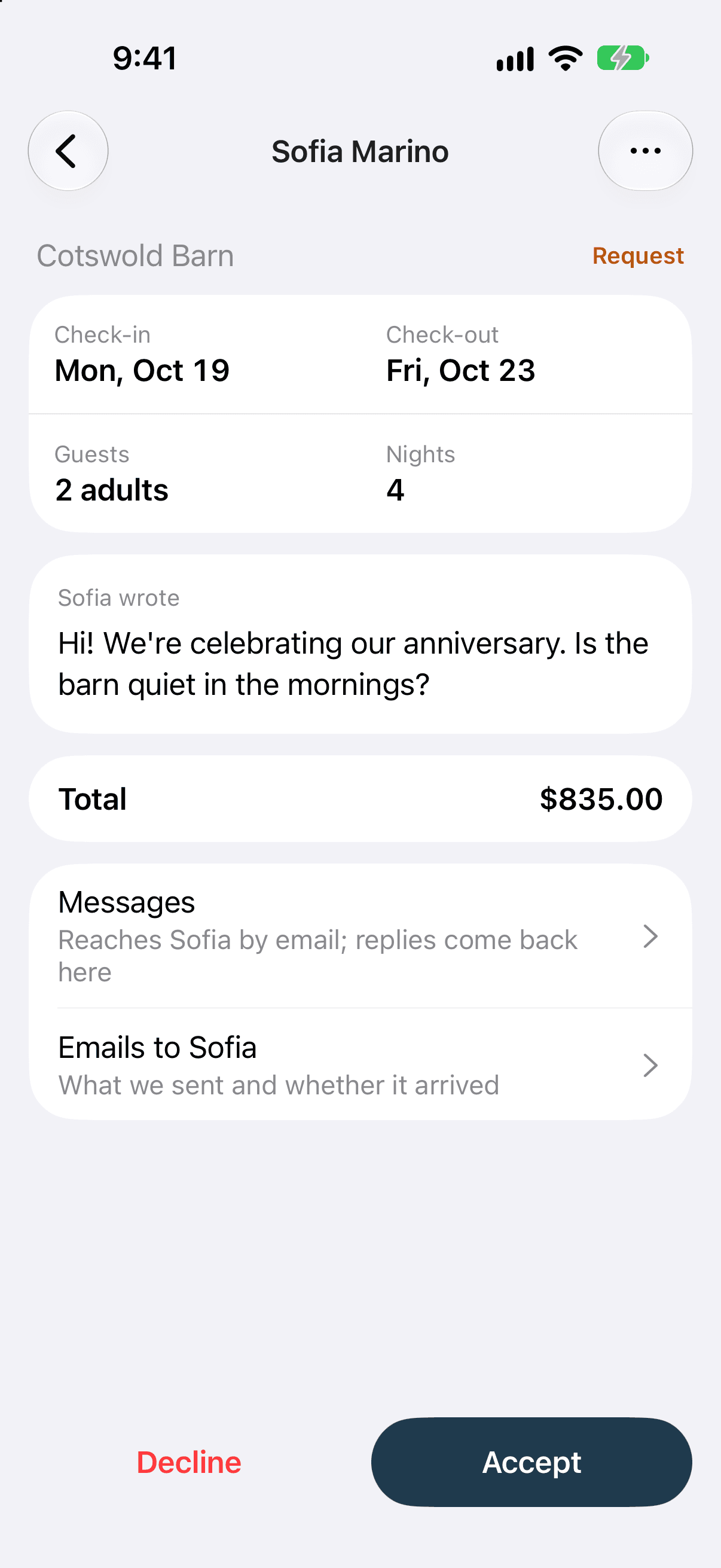
A request for the Cape Cod cottage might come in on a Tuesday afternoon. You open it, see five nights in July for four guests and the total, and tap Accept. If the Tahoe cabin needs to be closed for a roof repair, you pick the nights on the calendar and close them.
What stays on the website
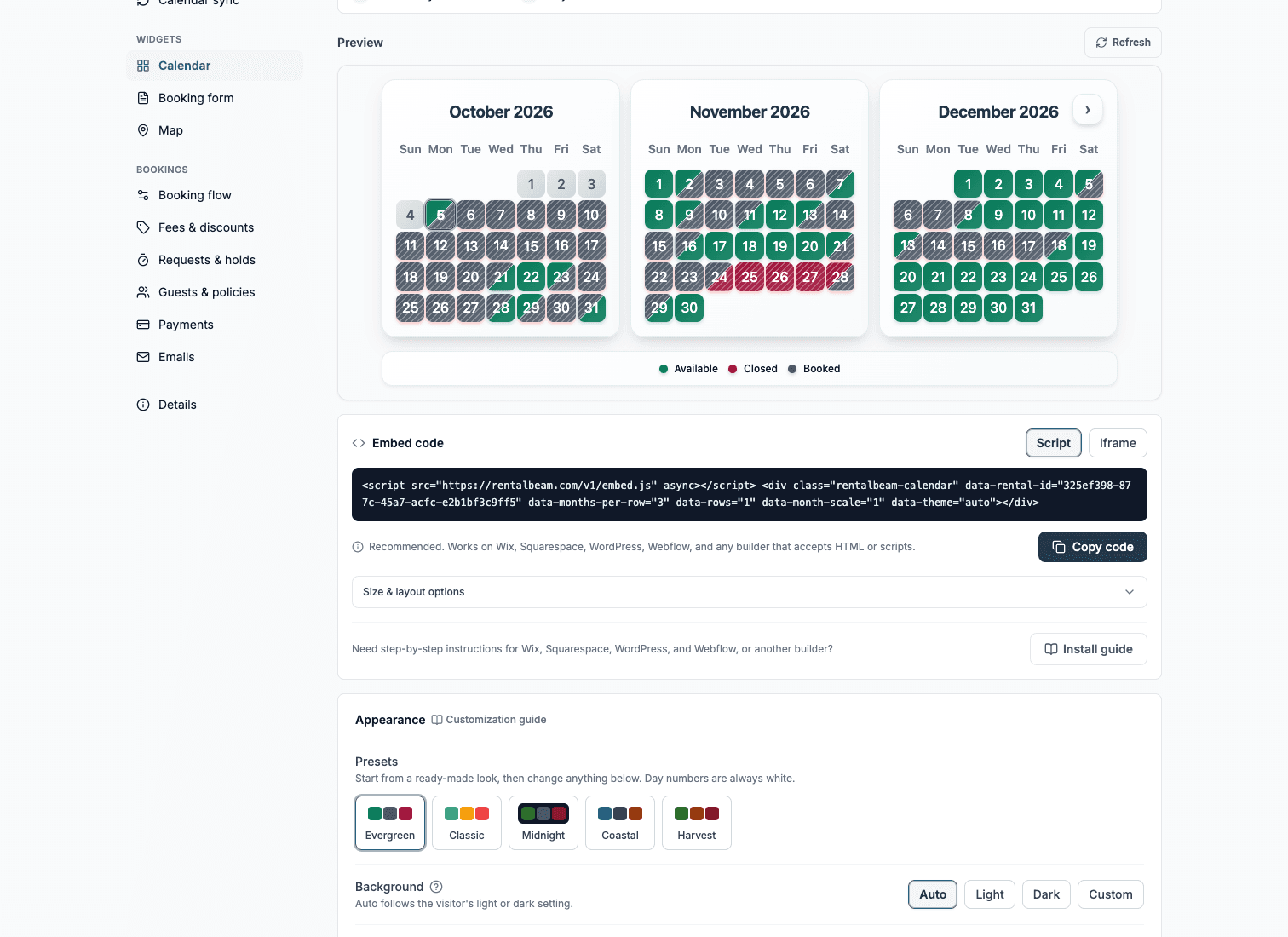
Setting up stays on rentalbeam.com. Adding your rentals, building the calendar, booking form and map for your website, and copying their embed codes all happen there. Use the quick start guide to get your website taking requests, then use the app for the day-to-day.
One account for the app and the website
The app uses the same RentalBeam account and the same bookings as the website, so a change in one is there in the other. On an iPhone you can sign in with Apple, Google, or your email and password. On Android, use Google or your email and password. You can create the account in the app or on the website.
Get the app
The app is coming soon to the App Store and Google Play.
- App StoreComing soon
- Google PlayComing soon
The phone app page links to each store listing the day it is live, and how the app works covers signing in, alerts and what to check when an alert does not arrive.