How to add an availability calendar to your Webador vacation rental website
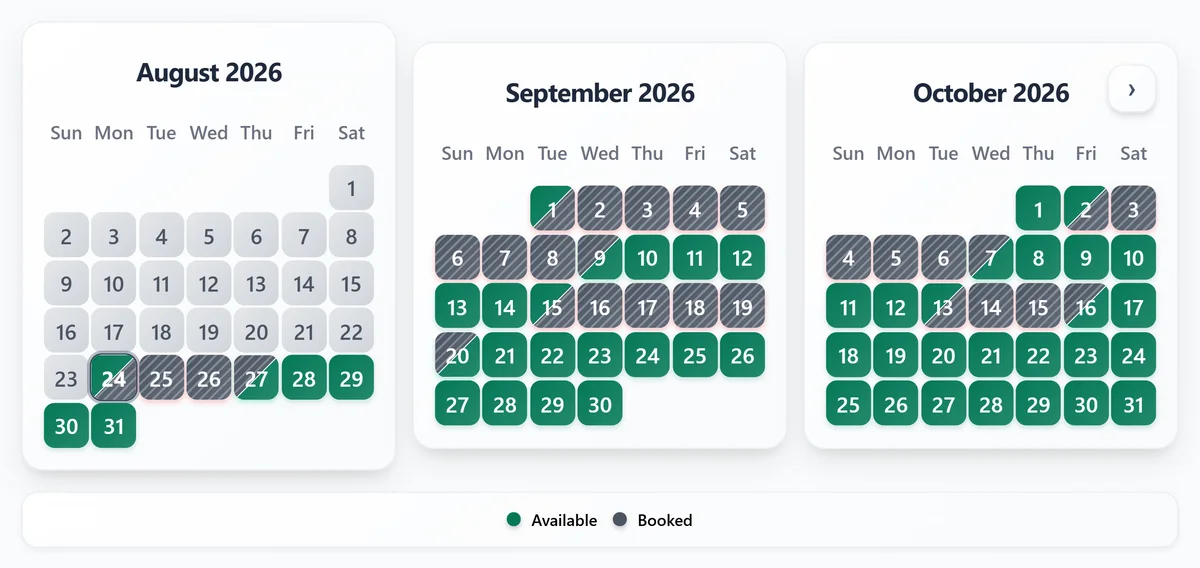
A Webador site can show guests which dates are open, synced from Airbnb, Vrbo and Booking.com. Webador's Embed Code element is where widgets from other services go, so the script snippet goes straight in and keeps the calendar sized to its content. The editor shows a placeholder, so the calendar only shows on your live site.
Why add a calendar to your Webador site?
Guests want to know whether your property is available before they click through to a form or send a message. A visible availability calendar shortens that decision path, reduces repetitive date questions, and supports a cleaner direct-booking flow on your own site.
- Show booked and open dates directly on your website
- Keep using Airbnb, Vrbo, Booking.com, or any other iCal-compatible source
- Reduce back-and-forth date questions from guests
- Prepare the page for a future direct-booking widget beside the calendar
What you need
- A Webador site you can edit
- Your RentalBeam calendar widget
- At least one connected OTA or iCal availability source such as Airbnb or Vrbo
Keep setup simple first
Start with one property page, confirm the calendar is visible and accurate, then roll the same pattern across the rest of your site.Setup steps
- 1
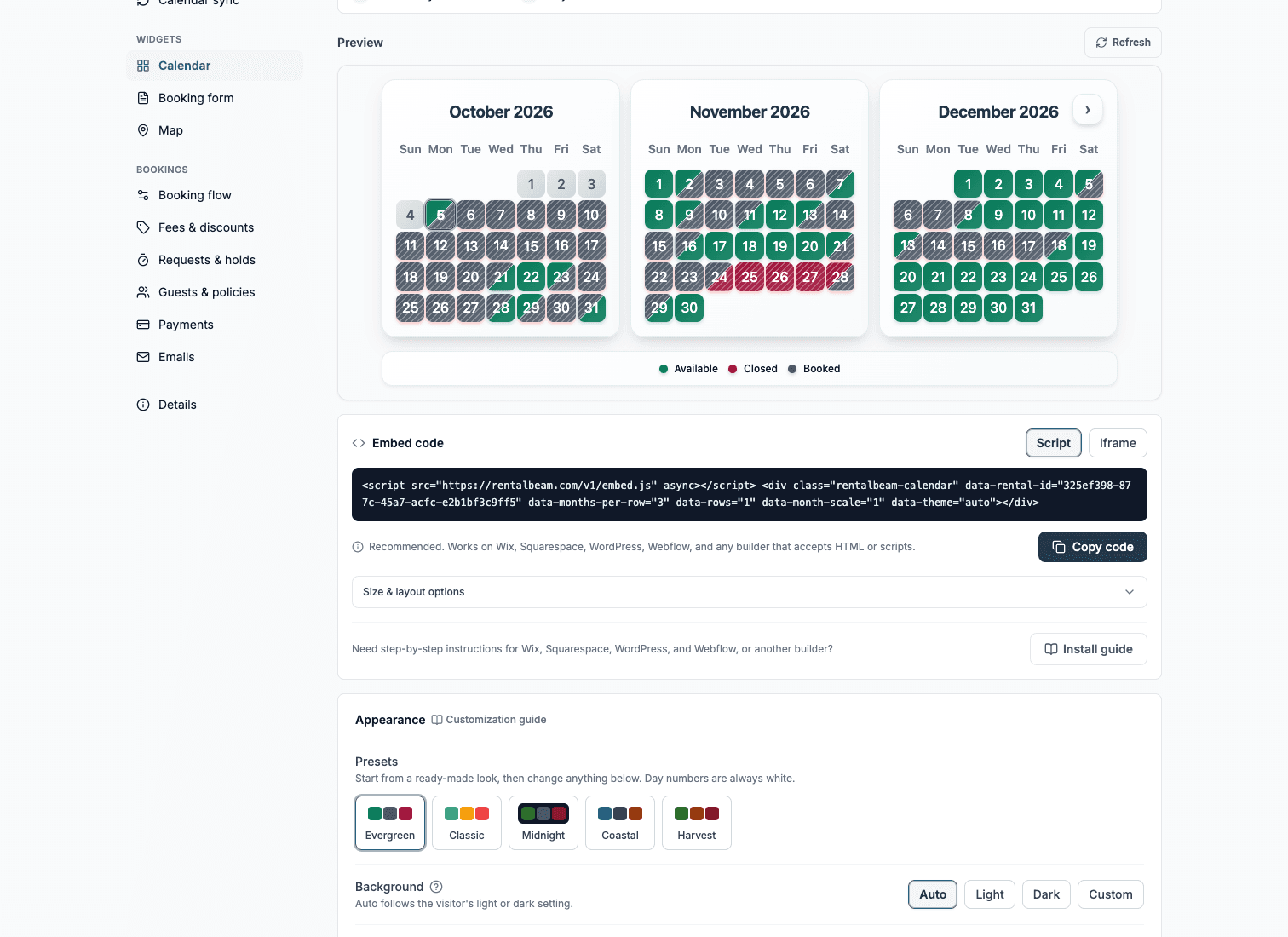
Create your RentalBeam calendar
- Open your RentalBeam dashboard and click Add rental.
- Paste your Airbnb, Vrbo, Booking.com, or other iCal source URLs.
- Check the preview so blocked dates already look correct before you embed anything.
Works with any iCal source
RentalBeam supports any iCal/ICS URL, not just Airbnb. You can merge multiple availability sources into one guest-facing calendar view. - 2
Copy the right embed code for Webador
RentalBeam recommends the script embed for Webador. Use the matching code format below as your reference.
html<script src="https://cdn.rentalbeam.com/v1/embed.js" async></script> <div class="rentalbeam-calendar" data-rental-id="your-calendar-id" data-months-per-row="3" data-rows="1" data-month-scale="1"></div>Webador's Embed Code element is where widgets from other services go, so the script snippet goes straight in and keeps the calendar sized to its content.
Webador publishing reminders
- The editor shows a placeholder instead of the embedded code. That is normal; check your live site.
- If the calendar does not appear on the live site, paste the iframe snippet into the same element instead.
- 3
Paste the embed into Webador
Builder-specific install steps
Use these steps to place the RentalBeam calendar exactly where guests check dates.
Recommended: ScriptWebador
Drag an Embed Code element onto the page, choose Edit embed, and paste the script snippet. It only shows on the live site.
Webador's Embed Code element is where widgets from other services go, so the script snippet goes straight in and keeps the calendar sized to its content.
Use the Script tab for this builder.
- Open the Editor for the page where guests should check dates
- Drag the Embed Code element from the left menu onto the page
- Click the element, click Edit embed, paste the RentalBeam calendar script snippet into the input field, and click Save
- Open your live site and check the calendar there
Before you publish
- The editor shows a placeholder instead of the embedded code. That is normal; check your live site.
- If the calendar does not appear on the live site, paste the iframe snippet into the same element instead.
- 4
Publish and verify the guest experience
Where to place the calendar on the page
- Add the Embed Code element right below the part of the page that describes the rental, so guests see the dates while they are deciding.
- The editor shows a placeholder instead of the calendar. Check your live site.
- If the calendar does not appear on the live site, paste the iframe snippet into the same element instead.
Think of the calendar as a conversion aid
Competitor guides consistently put availability close to the main inquiry or direct-booking action. That pattern reduces friction because guests can check dates and act in the same visual area.