

Jimdo integration
 Add a booking calendar to Jimdo

To add a booking calendar to Jimdo, copy your website code from RentalBeam and paste the script snippet into a Widget/HTML element. Guests see your open dates, synced from Airbnb, Vrbo and Booking.com. The calendar is free on every plan; the booking form (Pro) and the map (Plus or Pro) paste in the same way.
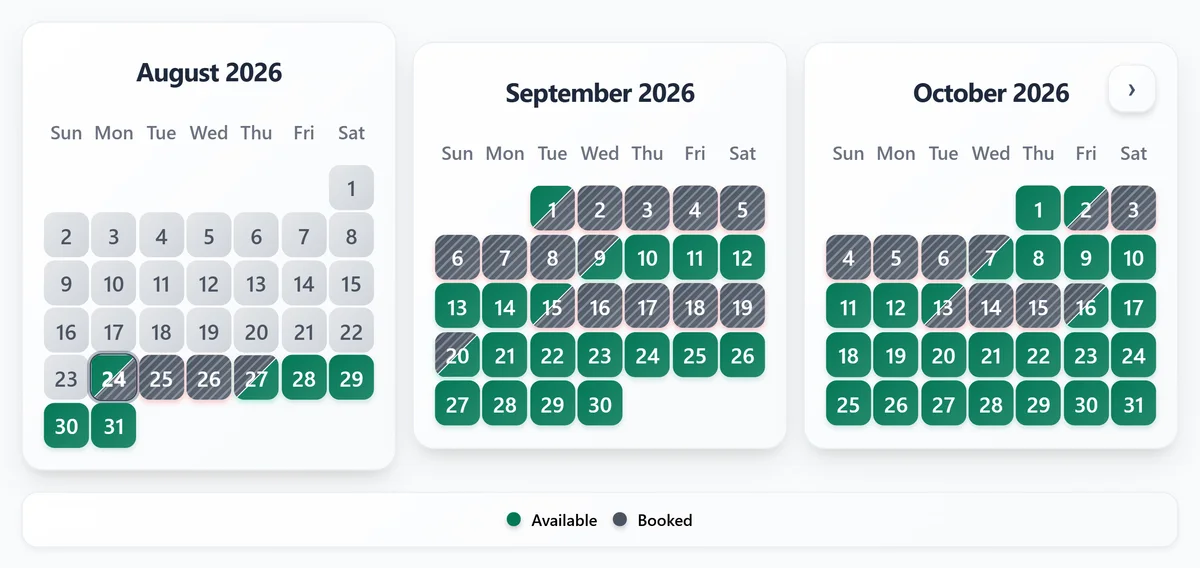
Availability calendar
Paste the calendar into Jimdo. Free on every plan. Use the script snippet in a Widget/HTML element.
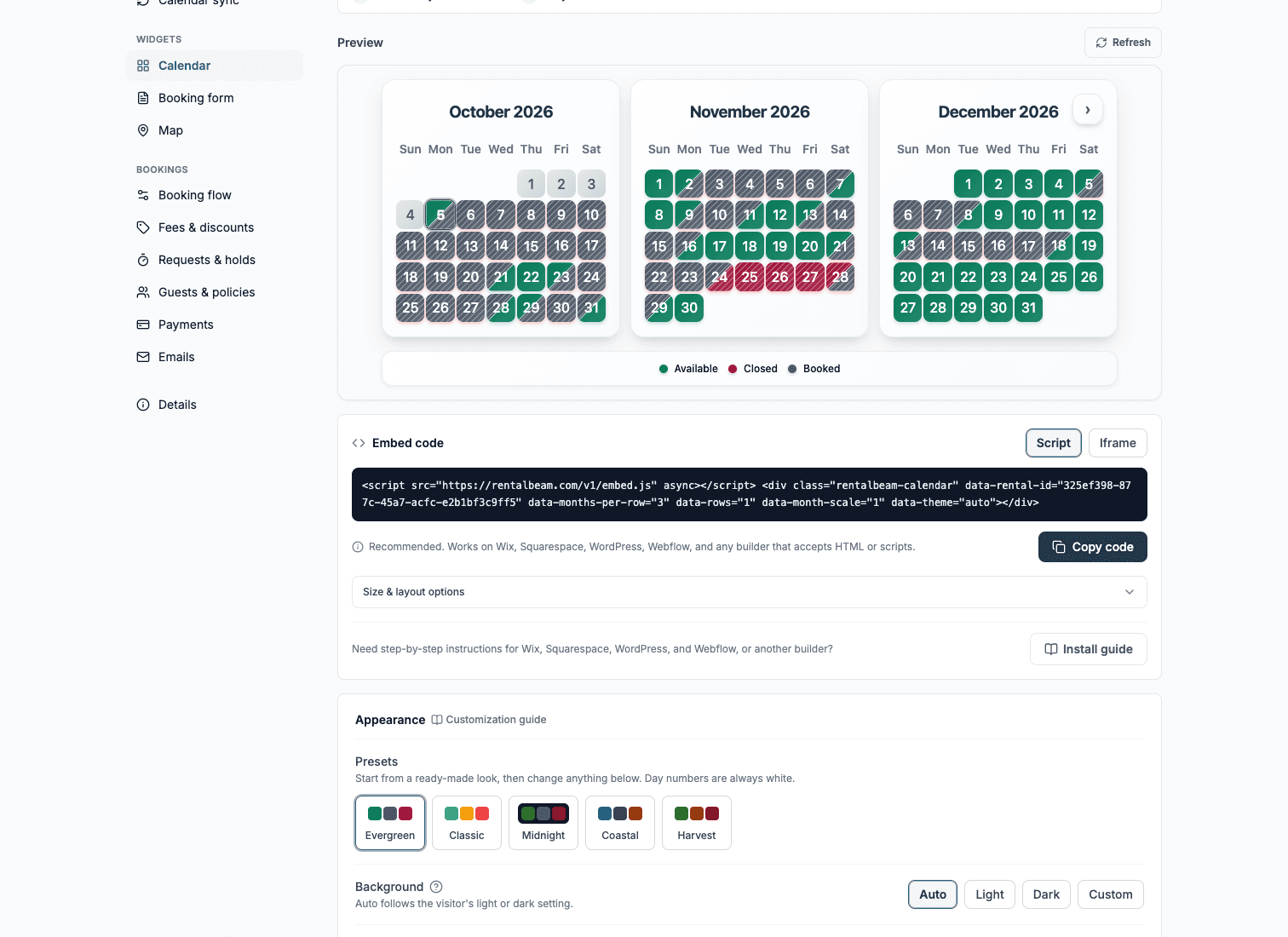
What you need
- A Jimdo Creator site you can edit (not the newer Jimdo Website Builder)
- Your RentalBeam calendar widget
- At least one connected OTA or iCal availability source such as Airbnb or Vrbo
Steps
- Log in, choose your website, and click Edit
- Hover over the content area and click Add Element, then More elements and Add-ons
- Choose Widget/HTML Element and paste the RentalBeam calendar script snippet
- Click Save, refresh the page if the calendar does not show, then check the live site
Before you publish
- This works in Jimdo Creator. The newer Jimdo Website Builder does not allow embed code or widgets from other providers, so check which Jimdo you have first.
- If the calendar does not appear, paste the iframe snippet into the same element instead.
- Place the element next to your booking or inquiry button so guests can act right after checking dates.
Where to put it
- Add the element next to your booking or inquiry button so guests can act right after checking dates.
- If the calendar does not show after you save, refresh the page, then check the live site.
- If the script does not run, paste the iframe snippet into the same element instead.
The script snippet looks like this
<script src="https://cdn.rentalbeam.com/v1/embed.js" async></script>
<div class="rentalbeam-calendar" data-rental-id="your-rental-id" data-rb-reserved style="min-height: 386px;"></div>
Jimdo Creator's Widget/HTML Element is made for code from other providers, booking tools included, so the script snippet goes straight in and keeps the calendar sized to its content.
Booking form
Take booking requests on Jimdo. On Pro. Guests pick dates, see the price and send a request.
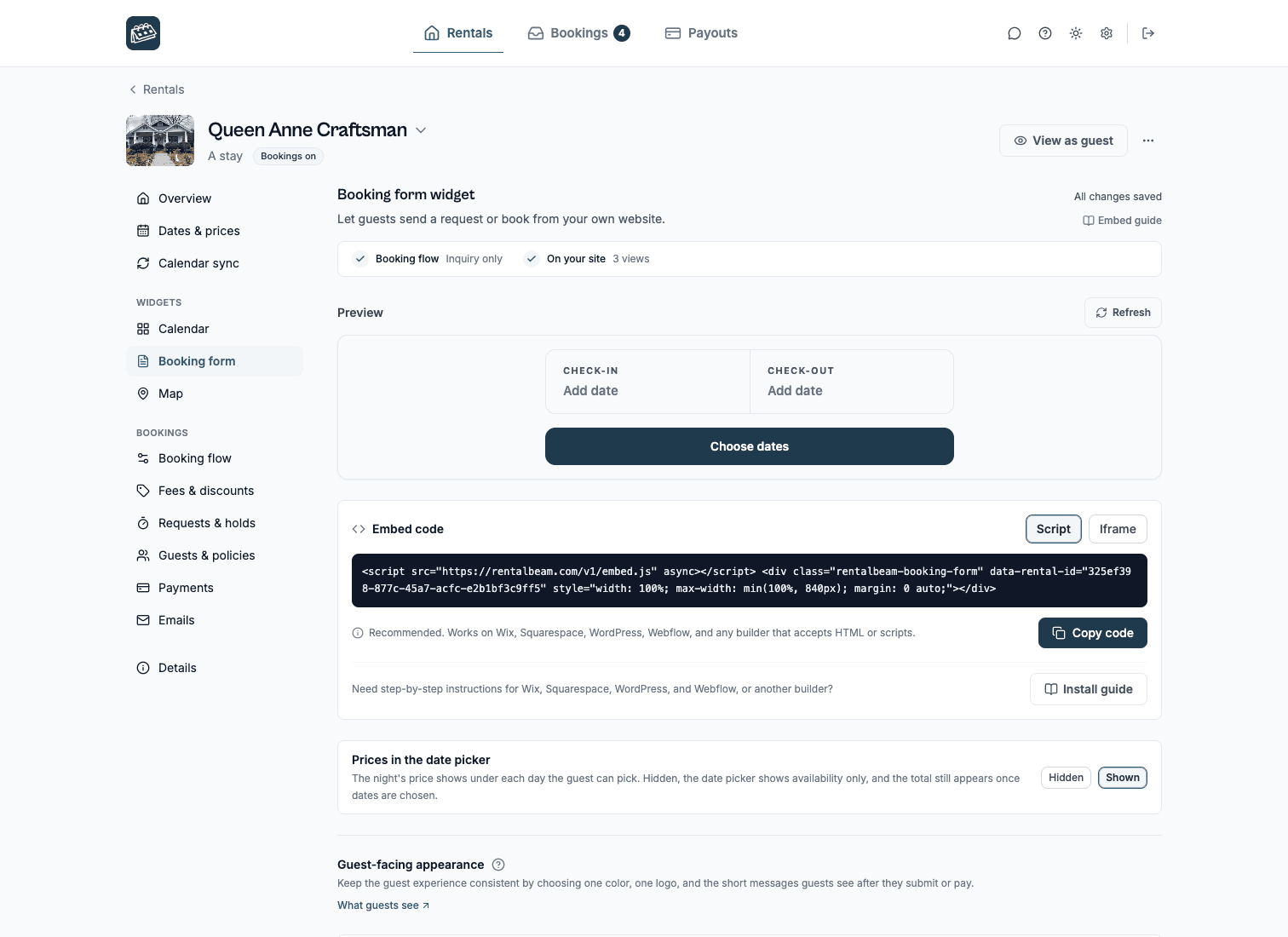
Steps
- Open the page where guests should send booking requests and click Edit
- Click Add Element, then More elements and Add-ons, then Widget/HTML Element
- Paste the RentalBeam booking widget script snippet and click Save
- Check the live site, then send a test inquiry from a computer and a phone
Before you publish
- This works in Jimdo Creator only. The newer Jimdo Website Builder does not allow embed code.
- If the form does not appear, paste the iframe snippet into the same element instead.
- Send one real test inquiry from the published page to confirm the email reaches you.
Where to put it
- Put the form right below your calendar so guests can check dates and book in one place.
- If the form does not show after you save, refresh the page, then check the live site.
- If the script does not run, paste the iframe snippet into the same element instead.
The script snippet looks like this
<script src="https://cdn.rentalbeam.com/v1/embed.js" async></script>
<div class="rentalbeam-booking-form" data-rental-id="your-rental-id" data-rb-reserved style="width: 100%; max-width: min(100%, 840px); margin: 0 auto; min-height: 160px;"></div>
The Widget/HTML Element takes booking tool code from other providers, so the booking form script goes straight in and can grow as guests fill it in.
Map
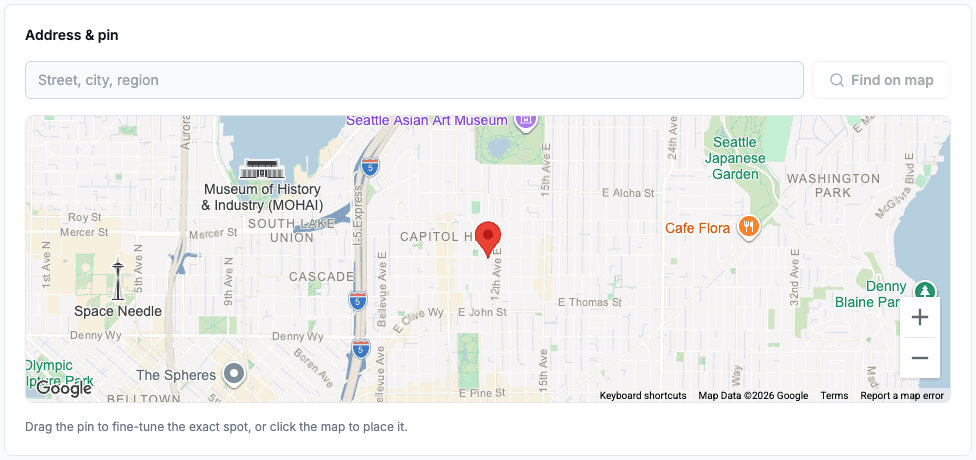
Show where your rental is on Jimdo. On your own website with Plus or Pro. Exact pin or approximate area.
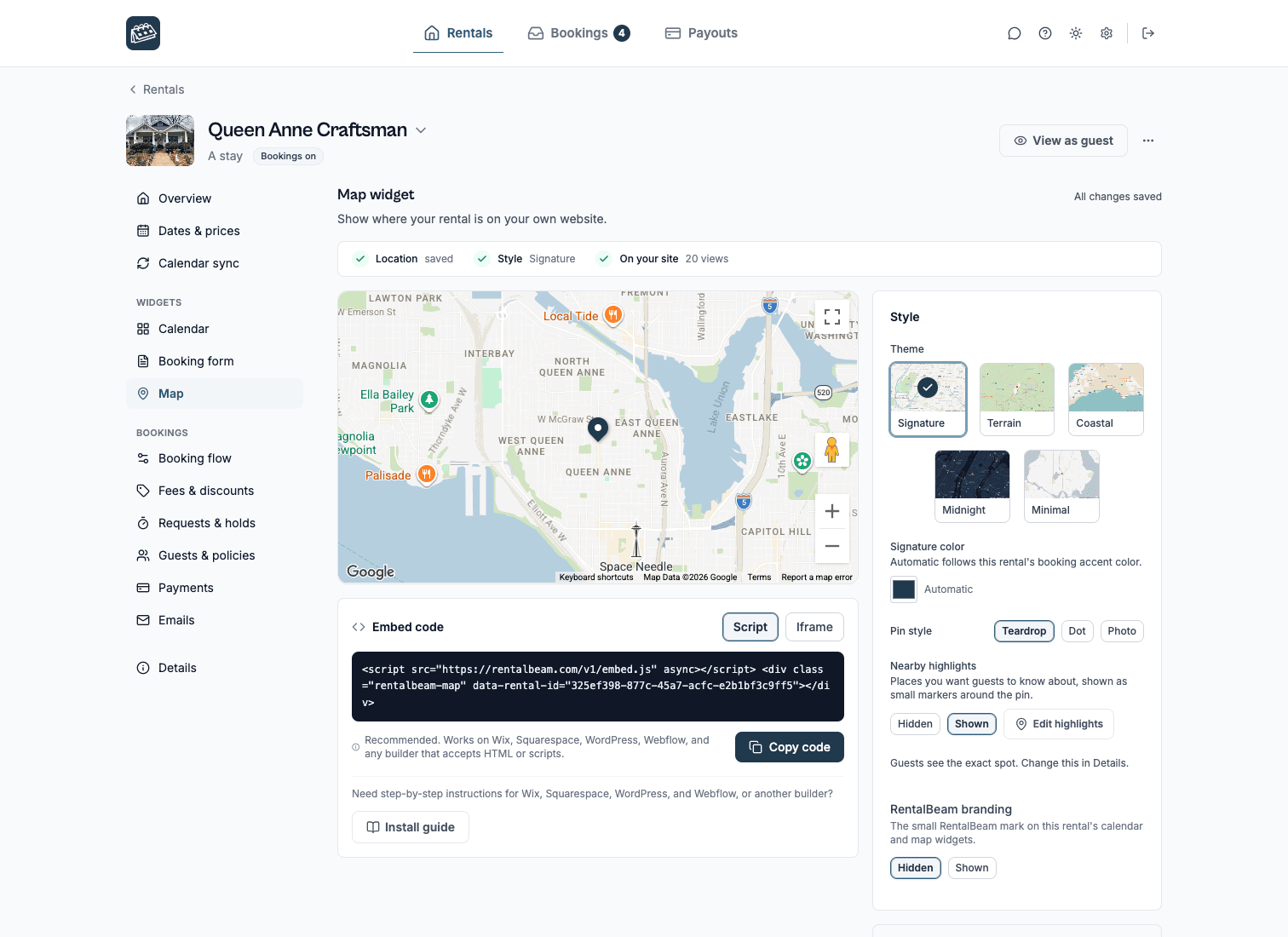
Steps
- Open the page where guests should see your rental's location and click Edit
- Click Add Element, then More elements and Add-ons, then Widget/HTML Element
- Paste the RentalBeam map script snippet and click Save
- Check the map on the live site
Before you publish
- This works in Jimdo Creator only.
- Place the map near your address or directions so guests find it naturally.
- If the map does not appear, paste the iframe snippet into the same element instead.
The script snippet looks like this
<script src="https://cdn.rentalbeam.com/v1/embed.js" async></script>
<div class="rentalbeam-map" data-rental-id="your-rental-id"></div>
The Widget/HTML Element takes code from other providers, so the map script keeps the theme and aspect ratio you chose in the Map section.
Troubleshooting
If a widget does not show on Jimdo. It goes in a Widget/HTML element. Then check these, in order.
- Publish the page and check the live address, not only the editor preview.
- Open the page in a private window to rule out a cached copy.
- Check that your RentalBeam calendar already shows the right booked dates before you look at the page.
- Send one test booking request from the live page and confirm the email reaches you.
Related guides. The same widgets, in more depth.
Jimdo questions.
Can I use RentalBeam on Jimdo?
Yes. The availability calendar, the booking form and the map all paste into a Widget/HTML element on Jimdo, and they work alongside your Airbnb, Vrbo or Booking.com listings instead of replacing them.
Should I use a script or iframe on Jimdo?
Jimdo Creator's Widget/HTML Element is made for code from other providers, booking tools included, so the script snippet goes straight in and keeps the calendar sized to its content. In practice, script is the best default for Jimdo.
Will this sync with Airbnb, Vrbo, and Booking.com?
Yes. RentalBeam supports any iCal URL, so you can import Airbnb, Vrbo, Booking.com, Google Calendar, and other compatible sources. The booking form reads the same calendar, so guests never see dates that are already booked elsewhere.
Do I need a property management system?
No. RentalBeam is for hosts who want synced availability and direct-booking tools without paying for a full PMS stack.
Does RentalBeam take a commission or booking fee on guest card payments?
RentalBeam Pro is a single direct-booking plan with no commission and no booking fee. It adds the booking form widget, guest-payment workflow, coupon codes, seasonal pricing, custom fields, booking rules, host email tools, and reply-from-inbox guest messaging. RentalBeam never takes a cut of your booking revenue. When a guest chooses to pay by card through RentalBeam, the only deduction is the standard Stripe card-processing fee, which is paid to Stripe - not RentalBeam. Inquiry, pay-later, and off-platform bookings (such as bank transfer) carry no per-transaction cost at all.
Which plan do I need?
The availability calendar works on every plan, including Free. The booking form needs Pro. Every plan can build and preview a map in a rental's Map section; showing it on your own website needs Plus or Pro.
Can I show an approximate area instead of my exact address?
Yes. Each rental's Details page lets you choose exact-pin mode or approximate-area mode. Approximate mode shows guests a shaded circle instead of your exact coordinates, and nearby highlights are withheld.
Put your calendar on Jimdo
Free to start. Copy the website code, paste it in, and publish.