

Embed the booking widget
Add the direct booking form to any page with a script tag or an iframe.
Finding your rental ID
Your rental ID is a long code with letters and numbers, like a1b2c3d4-e5f6-.... It sits inside your website code. Open the rental from the Rentals tab, choose Booking form under Widgets, and read the Website code section. It is the same ID your availability calendar uses, so one rental has one ID everywhere.
Embed options
Script embed: recommended for every builder
<!-- 1. Load the booking widget script -->
<script
  src="https://cdn.rentalbeam.com/v1/embed.js"
  async
></script>

<!-- 2. Place the form div where it should appear -->
<div
  class="rentalbeam-booking-form"
  data-rental-id="YOUR-RENTAL-ID"
  style="width: 100%; max-width: 840px; margin: 0 auto;"
></div>
Iframe embed: fallback if your platform strips scripts
<iframe
  src="https://rentalbeam.com/embed/bookingform/YOUR-RENTAL-ID"
  width="100%"
  height="700"
  frameborder="0"
  allow="payment *"
  style="border: none;"
></iframe>data-calendar-id keep working.height="700" and adjust after previewing on your live site.Auto-applied promo links
You can hand guests a discount that applies itself. Create a coupon in the rental's Fees & discounts section, then add it to the widget one of two ways:
Add data-coupon="SPRING25" to the embed and the coupon opens and applies on load (works for the script and iframe embeds). Or share a link to the page with ?coupon=SPRING25 (or ?rb_coupon=SPRING25) so one link both lands the guest and applies the discount. Guests can still remove the code, and an invalid or expired code just shows as invalid while the rest of the form keeps working.
Calendar open from the start
The website code in Booking form opens with the calendar already showing, so guests see which dates are free, and the price under each one, before they tap anything. Two taps pick the stay, then the guest count, total and form open in its place. To use it on an embed you already have, add the attribute, or ?entry=calendar to an iframe URL:
<div
  class="rentalbeam-booking-form"
  data-rental-id="YOUR-RENTAL-ID"
  data-rb-entry="calendar"
></div>
Without it, the form starts compact, with the calendar behind the check-in and check-out boxes. Collection booking forms open on their rental picker and keep that.
Compact search-bar entry
Instead of the full form, you can embed a compact bar: Check in / Check out / Guests / Check availability. Clicking it opens the full booking widget in a popup, or a bottom sheet on mobile. It suits hero sections, navigation bars, and sticky headers.
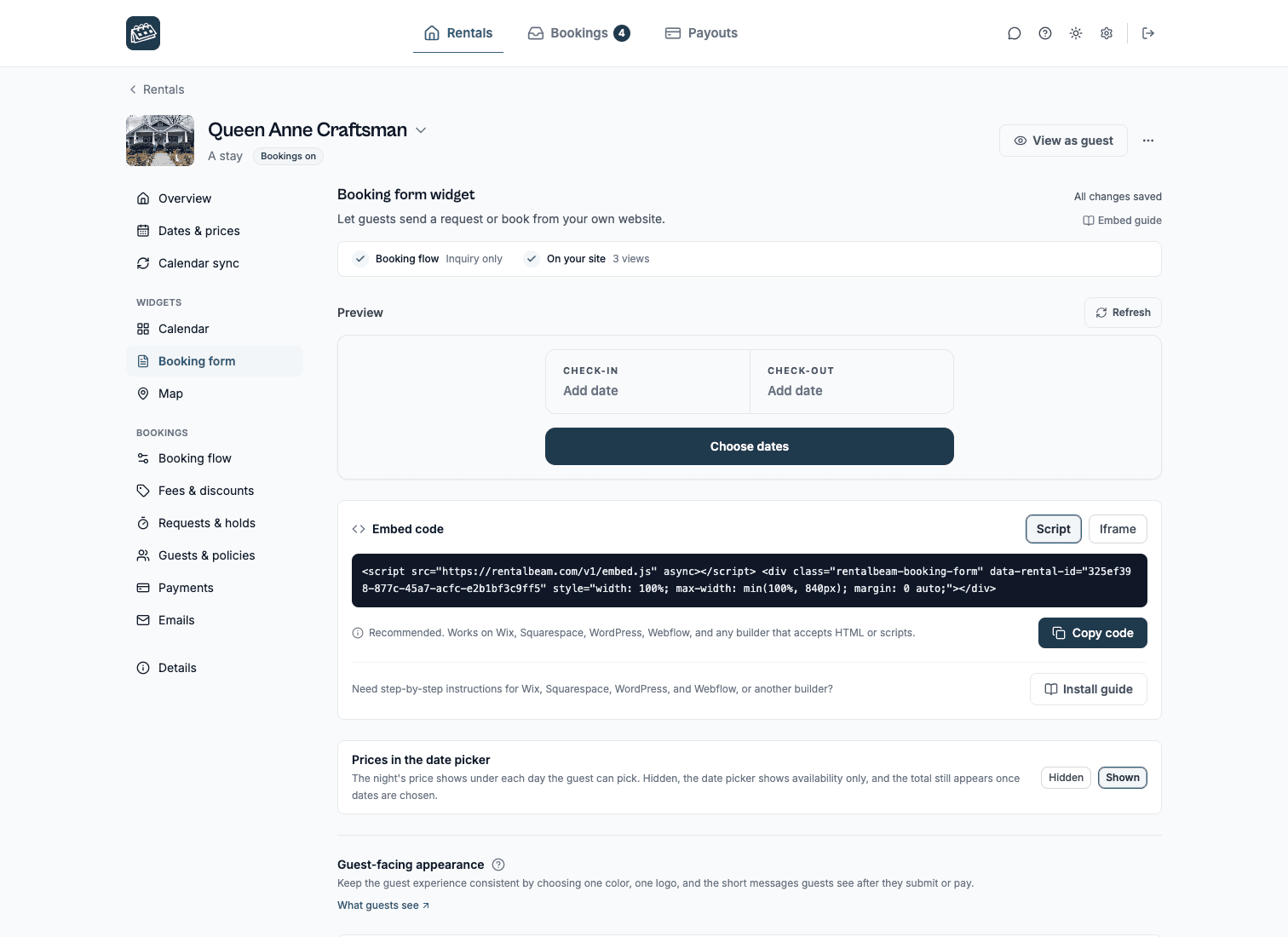
- 1Open the rental from the Rentals tab and choose Booking form under Widgets.
- 2Press Install guide under the website code.
- 3Under Entry style, pick Search bar.
- 4Copy the code from the guide and paste it into your page.
Or add the attribute to an embed you already have:
<div
  class="rentalbeam-booking-form"
  data-rental-id="YOUR-RENTAL-ID"
  data-rb-entry="searchbar"
></div>
For the iframe embed, add ?entry=searchbar to the URL. The same booking form can be embedded several ways on different pages. The entry style travels with each embed, so nothing changes for embeds you already have.
When the bar runs inside an iframe (the iframe embed, or a builder that sandboxes custom code such as Wix's Embed Code element), a popup cannot cover the surrounding page, so the bar opens your booking page in a new tab instead. This happens automatically; on regular script embeds the popup stays on your page.
Prefilling dates and guests
Open the widget with values already set: handy for "Book now" links or your own custom search bar. Add data-rb-guests="2", data-rb-checkin="2026-07-01", and data-rb-checkout="2026-07-05" to the embed, or share a link with ?checkin=2026-07-01&checkout=2026-07-05&guests=2. Dates open in the calendar for the guest to confirm against live availability.
Some site builders run your embed code inside a frame of their own. Wix's Embed Code element is the common one, and Google Sites does it too. There the widget cannot see the page address, so a link with those values in it does nothing on its own. Read the query in whatever page code your builder offers and send the widget a booking.open message instead, once it has reported widget.ready: Search then book on another page has the code for both.
Open the widget from your own button
Already have a custom search bar or a "Check availability" button? Call the widget directly:
<button onclick="RentalBeam.openBooking({ rentalId: 'YOUR-RENTAL-ID', checkIn: '2026-07-01', checkOut: '2026-07-05', guests: 2 })">
  Check availability
</button>
calendarId is still accepted as the option name here too, if you already have that in a live snippet. checkIn/checkOut are optional: same behavior as the data-rb-checkin/data-rb-checkout attributes above: a stale date is dropped and the guest just picks fresh, never forced.What your guest sees
Your guest sees a booking form on your own page. They pick dates, say how many people are coming, and read the price before they commit. Then they send a request, or pay online if you have that switched on. They stay on your site the whole way through, and you get an email as soon as they submit.
Using the calendar alongside the booking widget
The availability calendar and booking widget are independent embeds. A common layout is to embed the calendar above the booking form on the same page. Guests check availability, then scroll down to submit their request. Both widgets load availability from the same iCal sources, so they always show consistent dates.
If you want the widgets to communicate (for example, a date selection in the booking widget triggering something on the parent page), see postMessage events.