How to accept direct bookings on your one.com vacation rental website
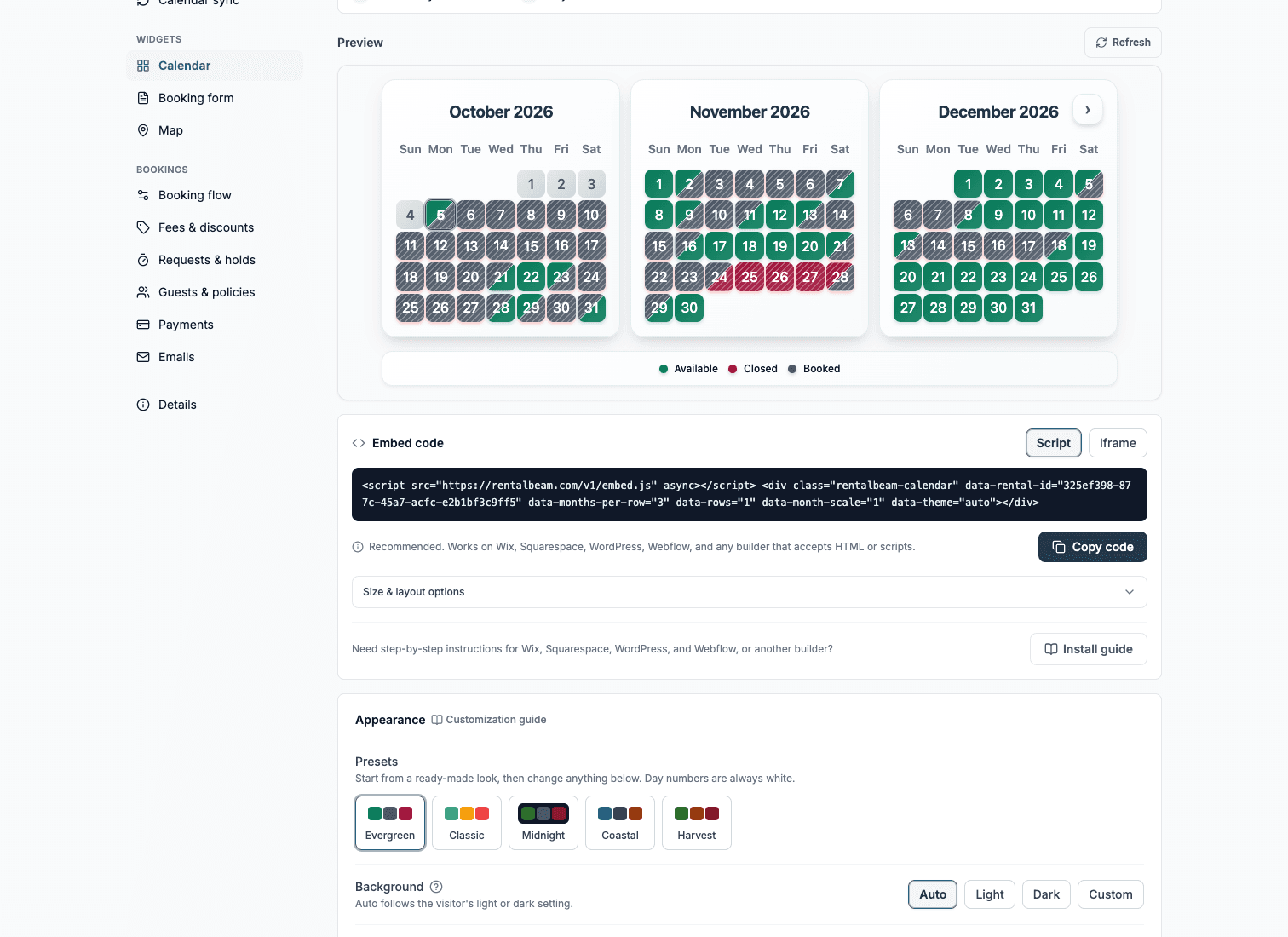
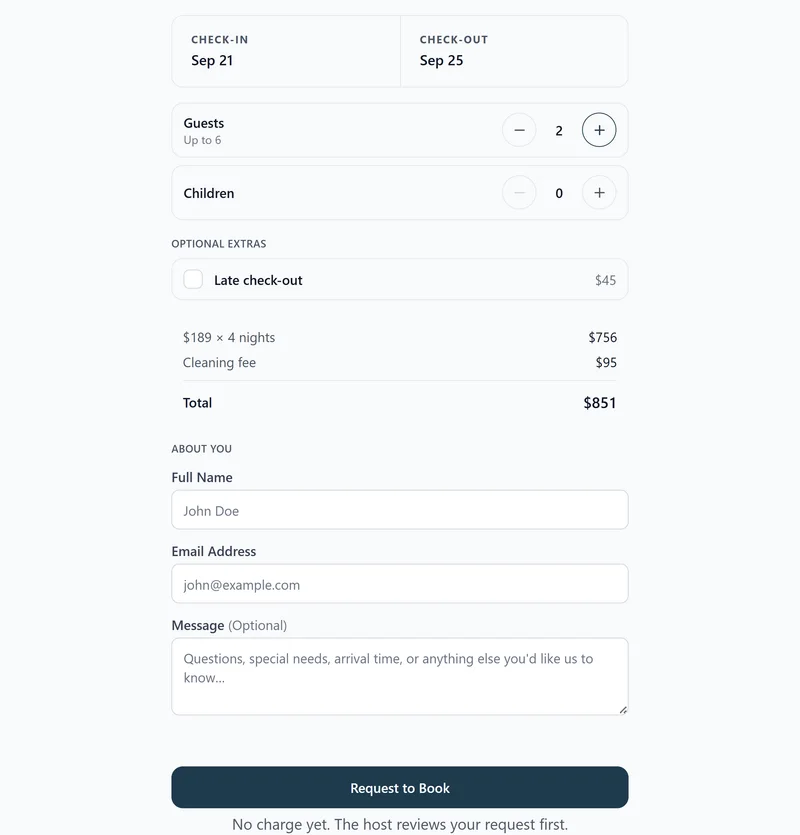
A one.com site can take real booking requests without a PMS or a separate form builder. The recommended setup pastes the RentalBeam booking widget script into the Code component next to your availability calendar, so the form can grow as guests fill it in. The Code component is part of Website Builder Premium and Business + E-commerce. You decide whether guests submit an inquiry, get billed after you approve by bank transfer, cash, or a secure card payment link, or pay inline with Stripe Connect, all with no commission and no RentalBeam booking fee on your direct bookings.
Why add a direct-booking form to your one.com site?
Guests who reach your own website are your highest-intent traffic. Letting them request or book a stay without leaving the page, and without paying an OTA service fee, is the most underused conversion lever in vacation rentals. A direct-booking form on one.com turns the page from a brochure into a booking surface.
- Take booking requests directly from your own website
- Keep Airbnb, Vrbo, and Booking.com synced so the form never sells double-booked dates
- Offer coupon codes, seasonal pricing, custom fields, and booking rules
- Choose between inquiry-only, bill later by bank transfer, cash, or a card link, or inline Stripe Connect card payment
- Zero RentalBeam commission on direct bookings: hosts keep 100% of their booking revenue
What you need
- A one.com Website Builder site on Premium or Business + E-commerce
- A RentalBeam Pro plan with a booking-ready calendar
- At least one connected OTA or iCal availability source
Pro plan required
The booking widget is part of RentalBeam Pro. We never take a cut of what you charge. When a guest pays by card, only the standard Stripe card-processing fee applies, paid to Stripe rather than RentalBeam.Setup steps
- 1
Create a booking-ready RentalBeam calendar
- Open your RentalBeam dashboard and add or open a rental.
- Connect at least one iCal source (Airbnb, Vrbo, Booking.com, Google Calendar) so the booking widget never offers double-booked dates.
- Set your nightly pricing, optional seasonal rules, minimum stay, advance notice, and prep time.
- Decide whether bookings should be inquiry-only, host-reviewed and billed later by bank transfer, cash, or a card link, or paid inline with Stripe Connect.
Choose payment flow at any time
You can start with inquiry-only or pay-later requests today and switch to inline card payments later without rebuilding the page. The widget URL stays the same. - 2
Copy the right booking widget embed for one.com
RentalBeam recommends the script embed for one.com. Use the matching code format below as your reference.
html<script src="https://cdn.rentalbeam.com/v1/embed.js" async></script> <div class="rentalbeam-booking-form" data-rental-id="your-calendar-id"></div>The Code component runs the booking form script, so the form can grow as guests fill it in.
one.com publishing reminders
- The Code component is part of Website Builder Premium and Business + E-commerce.
- To control where it sits, place the Code component inside a box component, as one.com suggests.
- If the form does not appear, paste the iframe snippet into the same component instead.
- Send one real test inquiry from the published site to confirm the email reaches you.
- 3
Paste the booking widget into one.com
Builder-specific install steps
Use these steps to place the RentalBeam booking widget exactly where guests are ready to book.
Recommended: Scriptone.com
Open Widgets, choose Code, and paste the script snippet. Needs Website Builder Premium or Business + E-commerce.
The Code component runs the booking form script, so the form can grow as guests fill it in.
Use the Script tab for this builder.
- Open the page where guests should send booking requests in Website Builder
- Click Widgets in the component menu on the left, scroll down, and select Code
- Paste the RentalBeam booking widget script snippet into the code component and click Save
- Publish the site, then send a test inquiry from the live page on a computer and a phone
Before you publish
- The Code component is part of Website Builder Premium and Business + E-commerce.
- To control where it sits, place the Code component inside a box component, as one.com suggests.
- If the form does not appear, paste the iframe snippet into the same component instead.
- Send one real test inquiry from the published site to confirm the email reaches you.
- 4
Publish and submit one live test inquiry
Where to place the booking widget on the page
- Put the form right below your calendar so guests can check dates and book in one place.
- Place the Code component inside a box component, as one.com suggests, so you control where the form sits.
- Send your test inquiry from the published site, on a computer and on a phone.
Treat the booking form as the page's primary CTA
High-converting direct-booking pages put the booking form directly next to or under the availability calendar so guests can check dates and request a stay in a single visual area.No commission on your direct bookings
RentalBeam Pro never takes a cut of what you charge. When a guest pays by card, Stripe charges its standard processing fee, paid to Stripe, not RentalBeam.
- No commission: RentalBeam never takes a cut of your booking revenue.
- No RentalBeam booking or application fee on guest card payments.
- Card payments carry only the standard Stripe card-processing fee; inquiry-only and pay-later bookings have no per-transaction cost.