

Collections
Show several of your rentals together in one embeddable availability calendar.
Before you start
You need at least two rentals on your account. A collection is a named list of rentals you already have, so there is nothing to group until there are two. You build one on the dashboard Rentals tab.
What it does
A collection is a named, ordered list of 2-25 of your existing rentals, shown together in one widget. Build one from the Rentals tab once you have at least two rentals. Each rental in a collection keeps its own iCal sources, pricing, and booking setup. A collection never changes or merges rental configuration, it only displays them together. The same rental can belong to more than one collection.
Availability views
| View | What guests see |
|---|---|
| Combined (default) | One merged month view: a date is open when any rental in the collection is free. Every open day looks the same at rest; clicking one shows how many rentals are free that day, and which |
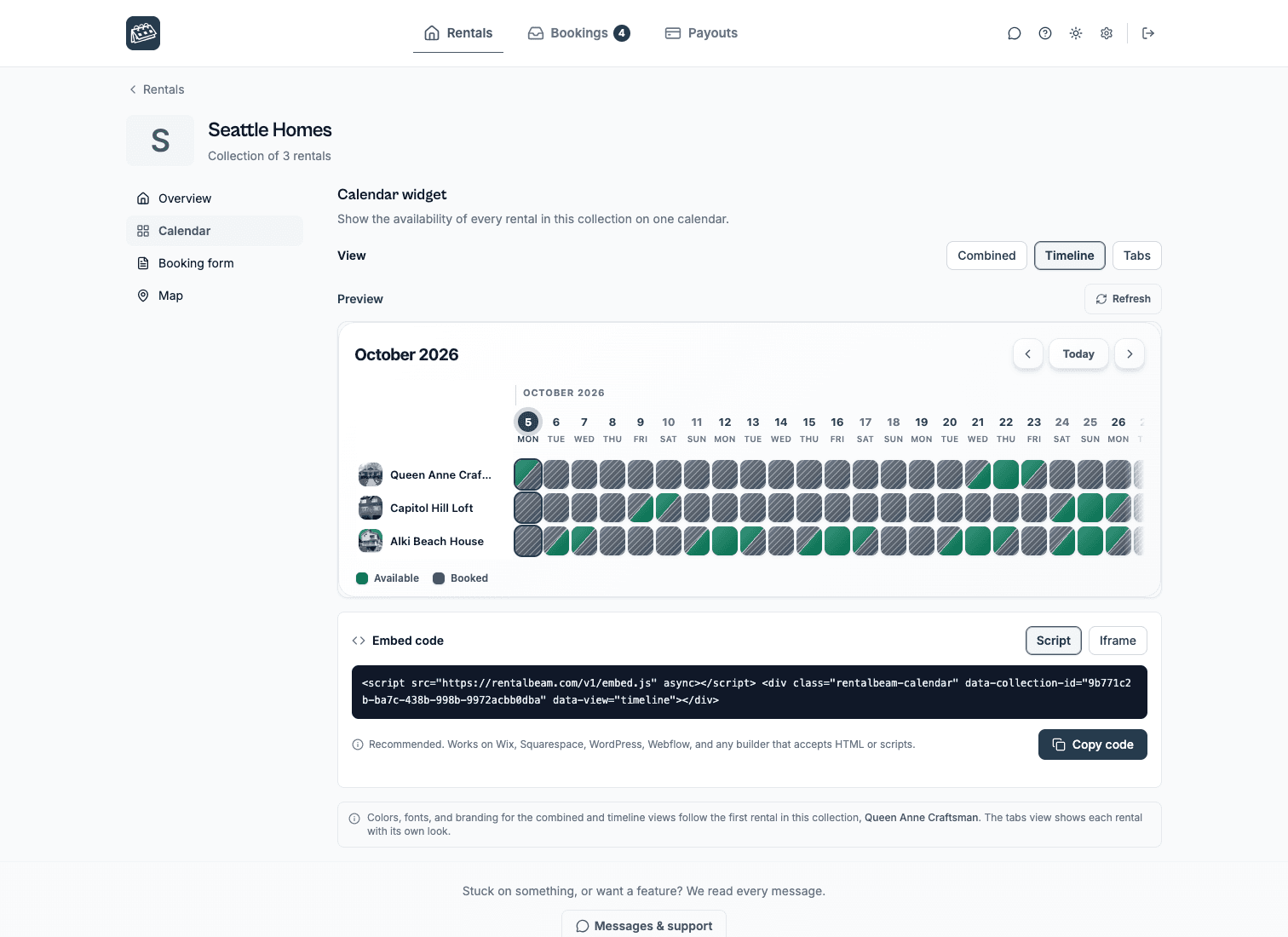
| Timeline | One row per rental with each rental's photo, and columns for days |
| Tabs | Each rental's own full calendar behind a tab, with its own look |
Embedding the collection calendar
Open a collection from the Rentals tab, choose Calendar in its side menu, and copy a ready-made snippet, or set data-view yourself:
Script embed
<!-- 1. Load the script once, anywhere on the page -->
<script
  src="https://cdn.rentalbeam.com/v1/embed.js"
  async
></script>

<!-- 2. Place the collection div where you want it to appear -->
<div
  class="rentalbeam-calendar"
  data-collection-id="YOUR-COLLECTION-ID"
  data-view="timeline"
></div>
Iframe embed
<iframe
  src="https://rentalbeam.com/embed/collection/YOUR-COLLECTION-ID?view=timeline"
  width="100%"
  height="500"
  frameborder="0"
  style="border: none;"
></iframe>
data-view accepts combined, timeline, or tabs; anything else falls back to combined. Combined and timeline take their colors and background from the collection's first rental; tabs always renders each rental's own look.Collection booking widget (Pro)
Install it from the dashboard: open the collection from the Rentals tab and choose Booking form in its side menu and press Get embed code. It works once at least one rental in the collection has bookings enabled. Rentals without bookings are simply left out of the form until you enable them. Pick the guest flow: Dates first (one merged calendar, then the guest chooses among the rentals free for those dates) or Rental first (the guest picks a rental up front). Then copy the snippet. Either way the guest lands on exactly one rental's real booking form: its own pricing, fees, custom fields, and payment, with every rental's minimum stay and blocked nights enforced.
<!-- Collection booking widget - guests pick dates, then a rental.
     Omit data-picker for the default dates-first flow. -->
<script
  src="https://cdn.rentalbeam.com/v1/embed.js"
  async
></script>
<div
  class="rentalbeam-booking-form"
  data-collection-id="YOUR-COLLECTION-ID"
></div>| data-picker value | Behavior |
|---|---|
| omitted / dates-first (default) | Dates-first: after the guest picks dates, shows the rentals free for those dates as photo cards with real prices |
| cards | Rental-first photo tiles |
| dropdown | Rental-first compact select |
dropdown is an advanced rental-first variant you can set by editing data-picker in the snippet by hand. If a rental in the collection later has bookings disabled, it simply drops out of the widget: the rest keep taking bookings.On any guest flow you can also let a guest tick additional rentals for the same dates. Turn on Let guests add other rentals in the install screen, or add data-multi-request="true" by hand. Each ticked rental becomes its own booking request with its own pricing and availability check, never one combined charge spanning rentals.
Plan requirements
Collections need at least two rentals, so they are available on plans with multiple rentals (Plus and Pro). The collection booking widget is part of Pro direct bookings; see plan pricing for details.