

Guest payments
How guests pay you for a direct booking, and what each option costs.
Before you start
Two things need to be in place. First, a rental with bookings turned on (open it from the Rentals tab, choose Turn on bookings in its side menu, and press Turn on bookings) and a nightly rate set in its Dates & prices section. Second, if you want guests to pay online, a verified payout account on the dashboard Payouts tab. Bank transfer and cash need no payout account.
How guests pay
There are two ways to get paid, and you can use either or both. You can take the money yourself by bank transfer or cash, which needs no setup at all. Or you can let guests pay online through Stripe Connect, by card or another way Stripe offers. Online payments are the only option that needs a payout account.
| How the guest pays | What you need | Where it happens |
|---|---|---|
| Bank transfer or cash | Nothing to set up | You send your details, then record the payment on the booking |
| Online, after you confirm | A verified payout account | A secure payment link you send the guest |
| Online, at the time of booking | A verified payout account | Inline in the booking form (Pay in widget) |
What guest payments cost
Pro includes no commission and no RentalBeam booking or application fee. You keep 100% of your booking revenue. When a guest pays online, Stripe's standard processing fee for that payment method applies. Inquiry-only requests, pay-later bookings, and off-platform payments such as a bank transfer have no per-transaction cost at all.
Get paid without connecting Stripe
Use this when you take bank transfers or cash and just want the booking side handled.
- 1In the rental's Booking flow section, choose Request now, bill later.
- 2In the rental's Payments section, add a payment step and set it to Bank transfer or Cash.
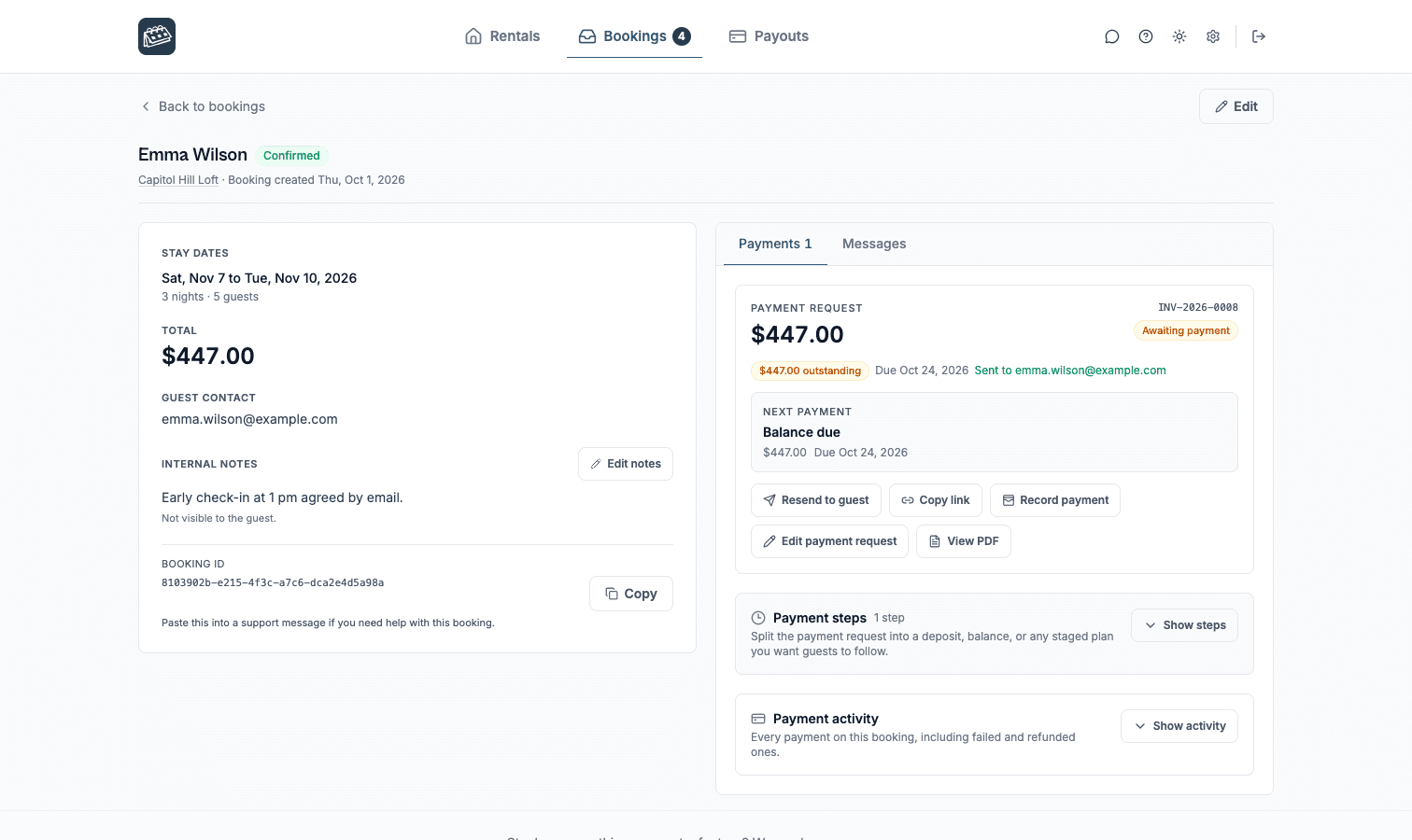
- 3Confirm a booking request, then send the guest their payment details.
- 4When the money arrives, open the booking and record the payment so your totals stay accurate.
Set up card payments
Use this when you want guests to pay online. Setup runs through Stripe Connect. Your RentalBeam subscription is billed separately and never touches guest payments.
- 1Add a payout account in the dashboard Payouts tab.
- 2Finish Stripe verification for that account.
- 3Assign the payout account to a rental in that rental's Payments section.
- 4Choose how guests pay: a payment link you send after confirming a request, or Pay in widget at the time of booking.
- 5Send yourself one real payment and confirm it arrives before advertising checkout on your site.
Currency
A rental currency must match the default currency of the payout account assigned to it before guests can pay by card. This does not apply if you only take bank transfers or cash.
Payment plans
Instead of a single charge, you can split what a guest owes into payment steps, for example, a deposit due at booking and a balance due later. Each step is set to card, bank transfer, or cash, so you can mix them: take a card deposit up front and settle the balance by bank transfer, or keep every step offline.
Every field of the plan, and every control that shapes the document your guest receives, is covered in Payment plans & documents.
Where guests pay
Online payments happen in one of two places: inline in the booking form when Pay in widget is on, or later through a secure payment link that opens a hosted payment page. That hosted page is also where a guest returns to pay a later step in a payment plan. Bank transfer and cash steps are settled directly with you, and you record them on the booking.
Ways guests can pay online
Stripe shows each guest the ways to pay that fit the booking's currency and where they are: a card, Apple Pay or Google Pay where their browser supports it, Link, and the local methods your Stripe account has on, such as Cash App Pay in the United States, Klarna, iDEAL in the Netherlands, or Swish in Sweden when your prices are in Swedish kronor. To offer a local method, turn it on in your own Stripe Dashboard under Settings, Payment methods; Stripe may ask for a few details before it switches on. Payments that take days to clear, like bank debits, are never offered, so a guest who pays has a confirmed payment the moment they finish.
In the booking form on your own website, guests pay by card or Link right there, and by Apple Pay in Safari. A method that sends them to their bank's site or a payment app opens the secure payment page in a new tab, and they finish there. Every method your account offers works on the secure payment page.
What your guest sees
Here is one booking from the guest's side, in their words. A five-night stay priced at $1,200.00, with a 30% deposit on the card and the balance due when they arrive on September 21, 2026.
The confirmation email
The subject says their booking is confirmed. Inside, a Payment summary lists Paid today $360.00, the Payment step they just paid ("Deposit", the label you wrote), a Booking reference, the Reservation total $1,200.00, and the Remaining balance $840.00. Under it, a box headed What's next reads: "We received $360.00 today. $840.00 is due on Mon, September 21, 2026." Money without a date is half an answer, so the email never names one without the other.
The button below it says Pay online when the balance can be paid online, with the line "We'll confirm by email once you've paid." When the balance is a bank transfer or cash, it says View payment details instead, with "See how to pay and download a copy." If nothing is owed, the box says "You are all set".
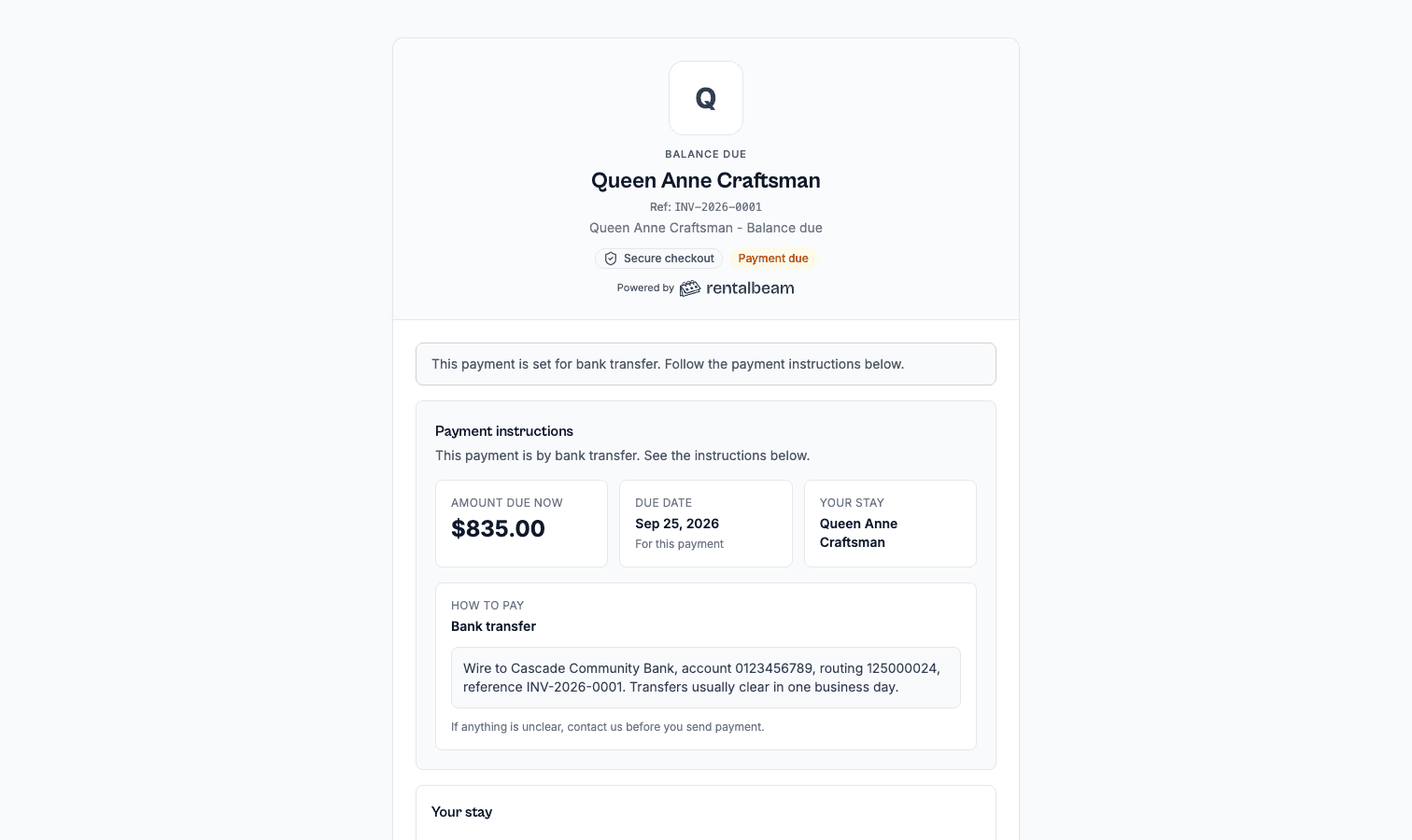
The payment page
Every one of those buttons opens the same secure page. The link never expires and always shows whatever is still owed, so a guest who lost one email can pay from any of the others.
At the top the guest reads Amount due now, a Due date, and Your stay. Below that, a Payment details card with the reservation lines, the Reservation total, the Remaining balance, and, from two steps up, the whole Payment plan with a Paid marker on what is behind them and a due date on what is ahead. Your payment number sits quietly under the heading.
For an online payment step the page shows a Continue to payment button, then the payment form with Pay now, and the line "Payments are processed by Stripe." For a bank transfer or cash step the heading changes to Payment instructions, and a box headed How to pay prints your own transfer or cash wording exactly as you typed it, followed by "If anything is unclear, contact us before you send payment." If you have not written those instructions, the guest is told to reply to the email and ask, which is a day lost on every booking.
At the bottom is Download PDF. It is the same document you open with View PDF on the booking.
The receipt
Every payment you take or record can email the guest a receipt: "Payment confirmed for" your rental. It repeats Received now, the Payment step, the Reservation total, and the Remaining balance, and carries the payment link again when something is still owed.
The reminder emails
A reminder is titled "Your payment is due" with the day, or "A payment for your stay is overdue" once it is late. It lists Amount due, Already paid when they have paid part of it, the Payment step, the Due date, and the Method, then their stay dates, then a box headed How to pay with the link. The overdue one adds "If it is already on its way, please ignore this email."
Payment reminders
You do not have to chase a balance. Three days before a payment step is due, the guest gets an email with the amount, the date, and their payment link. If it is still unpaid two days after the due date, they get one overdue notice, and you get an email the same day so the late payment is in your inbox too. Each reminder is sent once per step, during daytime hours in the rental's own time zone, and never for a step that has already been paid. Reminders are on by default for every rental, whichever booking flow it uses, because any booking can carry a payment request; switch them off under Payment reminders in the rental's Emails section if you run your own, which also switches off the email to you.
Three things stop a reminder on purpose. A step you ask for with less than three days to pay gets no early reminder, because the payment request you just sent already gave the guest the amount and the date. No overdue notice goes out while the guest is staying with you, since they settle in person; once they have checked out, an unpaid step is chased again, and your Bookings inbox shows the late payment either way. And the overdue notice stops going out a week after it starts, so switching reminders on for a rental with old unpaid steps never emails last season's guests.
Two-factor authentication required
Managing payout accounts requires two-factor authentication on your RentalBeam account. This applies to card payments only.
Common questions
Does RentalBeam take a cut of what my guests pay?
No. There is no commission and no RentalBeam booking or application fee, so you keep 100% of what you charge. A card payment carries the standard Stripe card-processing fee, which is paid to Stripe for handling the transaction. Bank transfers, cash, and pay-later bookings cost nothing per transaction at all.
Why can I not choose the language of the payment document?
The document is English, and its money and dates are US-style: "$1,398.75", "September 21, 2026". Its labels ("Amount due", "Date of issue") are English, so its numbers follow the same convention. A German guest reading "Amount due 1.398,75 $" would be reading two languages on one line. When the labels themselves are translated, the language and the number format will switch together, and the document will follow the guest's language, since the guest is the one reading it.
Why did my guest not get a receipt?
Three ordinary reasons, in the order worth checking. The receipt may be switched off: the rental's Emails section has Online payment receipt and Offline payment receipt as separate rows, and either can be set to Do not email. The payment may have confirmed the booking, in which case the guest got the confirmation email instead, which already says what was received. Or the booking has no guest email address, which happens on a booking you added by hand.
What happens if a payment lands on a booking I already canceled?
Canceling a booking closes the door behind it. RentalBeam refuses to email a new payment request, refuses to mint a new link, and voids the links already out there, including an open card checkout. If money still arrives, from a bank transfer sent before you canceled, the booking is flagged in your dashboard as an unresolved payment so you can refund it rather than discover it in a statement weeks later.
Can I switch reminders off for one booking?
No. The switch is per rental, under Payment reminders in the Emails section, and it governs every booking that rental takes. If you want to ask one guest for money at a moment of your choosing, send them a payment request from the booking instead. That is the per-booking control.
What does a guest see if they open an old link after I canceled?
A short line saying the payment link is not currently active, and to contact you if they expected to pay from it. No amount, no form, no card field. A bill for a stay that is not happening reads as deliberate, so we do not show one.
Do I need Stripe to use a payment plan?
No. A payment step can be bank transfer or cash, and a plan made only of those needs no payout account and no verification. Stripe is only for the steps a guest pays online.